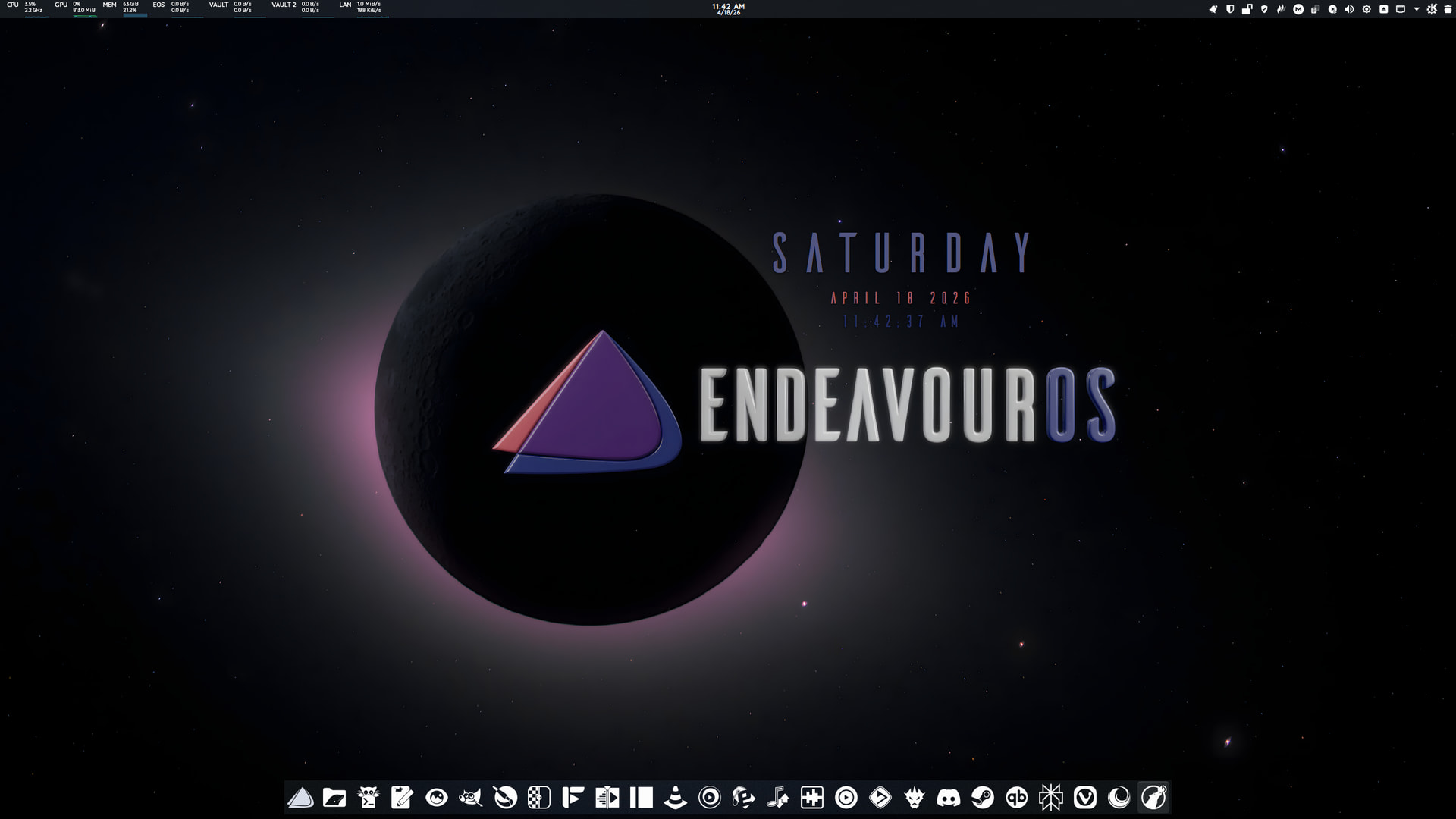
Celebrating Artemis II 
- Minor Klassy/Darkly/Panel Colorizer tweaks, new wallpaper, new Fastfetch image.
Noodling around with catppuccin colors, klassy window decoration, a few widgets made by @luisbocanegra. I am back at @dirn’s awsome YAMIS Icon Set
My new desktop inspired by Garuda Mokka and Noctalia shell.
Regards!
What is your application menu?
Mostly standard settings, but with my own wallpaper which I’ve been using for many years on different platforms.
Hey everyone! Just discovered KDE Plasma recently and I’m totally blown away by the customization possibilities! Love seeing all these amazing setups here. The Breeze theme is so clean and elegant. Currently running KDE Plasma 6 on Arch Linux and still figuring out all the tweaks. This thread is super inspiring! 
Hi all! New to the forum, but not (too) new to Linux and KDE. Recently got a used ThinkPad from a friend, theme I’m going for is Astrocartographer.
Fresh install of CachyOS on the new-to-me Lenovo T14 Gen 1 laptop. I’ll be completing setup in the coming days, finish installing apps and theming. For now, it’s just some quick theming to get me going.
Tweaked window decoration slightly, Darkly and Panel Colorizer tweaks, new Fastfetch image, new wallpaper.
Finally got my laptop set up they way I like on this fresh CachyOS install.
For theming I used Klassy, Darkly, Better Blur DX, and Panel Colorizer. Other specs on my system/theme is in the Fastfetch image.
This is what my Desktop looks like, Had a lot of fun with the KDE Desktop Widgets, I think it looks pretty good :3
Can you please share how exactly you made this dock to look like that??? I understand it’s the widget colorizer, but can you please explain the step by step process?
I’m referring to this
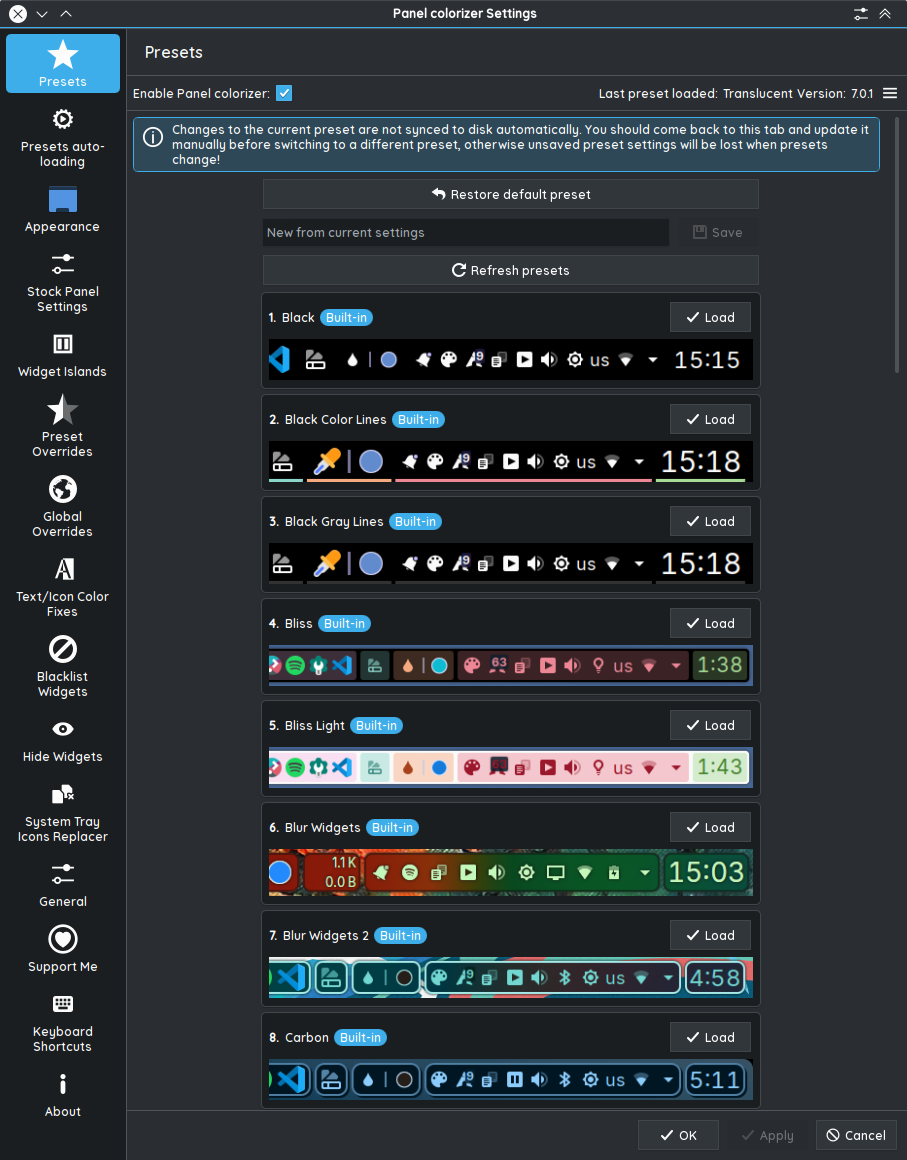
@maria_vis, it’s not a dock, it’s the regular Plasma panel. And there’s way too many settings to go through for a step-by-step tutorial. Especially in this thread. I will say that when I first started with Panel Colorizer, I just tinkered with the settings until I got what I like. And there are a LOT of settings, including presets that can be further edited. This video gives you just an idea of some of the settings.
Settings -
And each category on the left has even further settings. Best way is to use it yourself and have fun tinkering!