Here’s how to enable deadkeys and composed characters for your Flatpak applications. Not all Flatpak applications have this problem, so we’ll only target the problematic ones.
Let’s take the Letters Flatpak for example.
Install Flatseal (from Flathub)
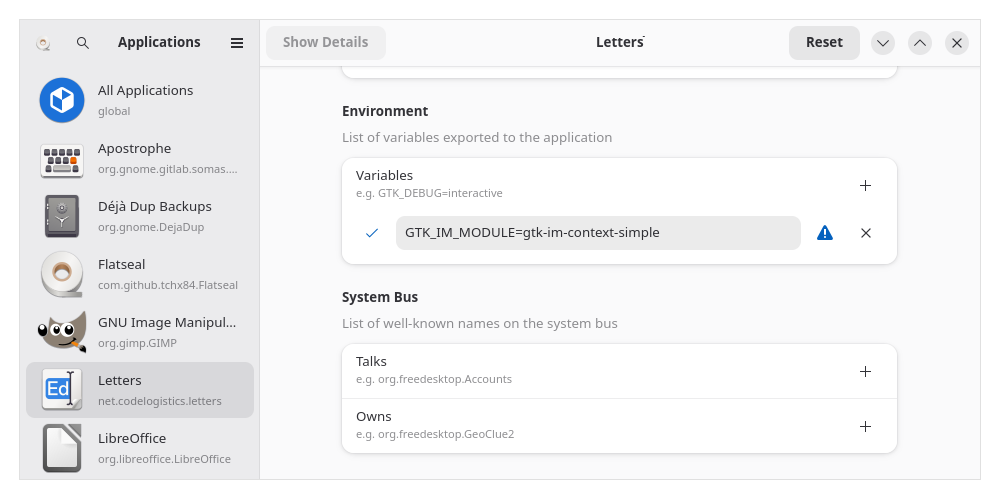
Launch Flatseal
Select Letters
Go to “Environment”
Add this variable: GTK_IM_MODULE=gtk-im-context-simple
Close and re-open Letters.
Et voilà ! Now you can type composed characters such as: à â è ê î ô ù À Â…
For the past few weeks, I have the same issue with GTK apps (e.g. Dino, Gajim) installed as a normal Arch package, so it seems this is not Flatpak-specific.
As of GTK 4.20, GTK no longer falls back to handling compose keys and dead key behaviors by itself only when using Wayland, and when an input method isn’t present. I can only guess that the reasoning behind this is because a graphical toolkit rightfully shouldn’t concern itself with a compose key implementation, and it should be the responsibility of the input method.
[…]
The reason why this seemingly only impacts non-GNOME users, is that GNOME Shell bundles IBus by default, which has been handling compose keys and dead keys on GNOME unless explicitly opted out otherwise. There’s, again, nothing that individual compositors need to do.
Following the tips in the above-linked comment, I managed to fix it by:
installing Fcitx5 (installing IBus instead should be another option, but as I understand, Fcitx5 integrates better with KDE)
(optionally) installing the KCM module for Fcitx5 (called e.g. fcitx5-configtool)
going to System Settings ↦ Input & Output ↦ Keyboard ↦ Virtual Keyboard and selecting “Fcitx 5” there.
(optionally) adding/changing the layouts in System Settings ↦ Language & Time ↦ Input Method
 Potential Limitations