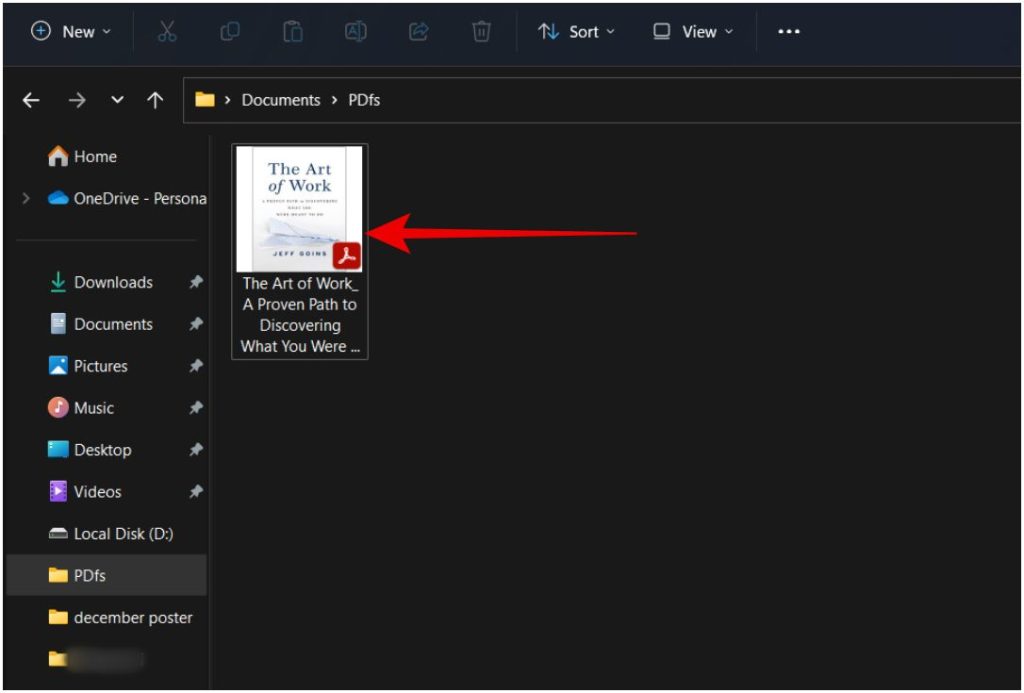
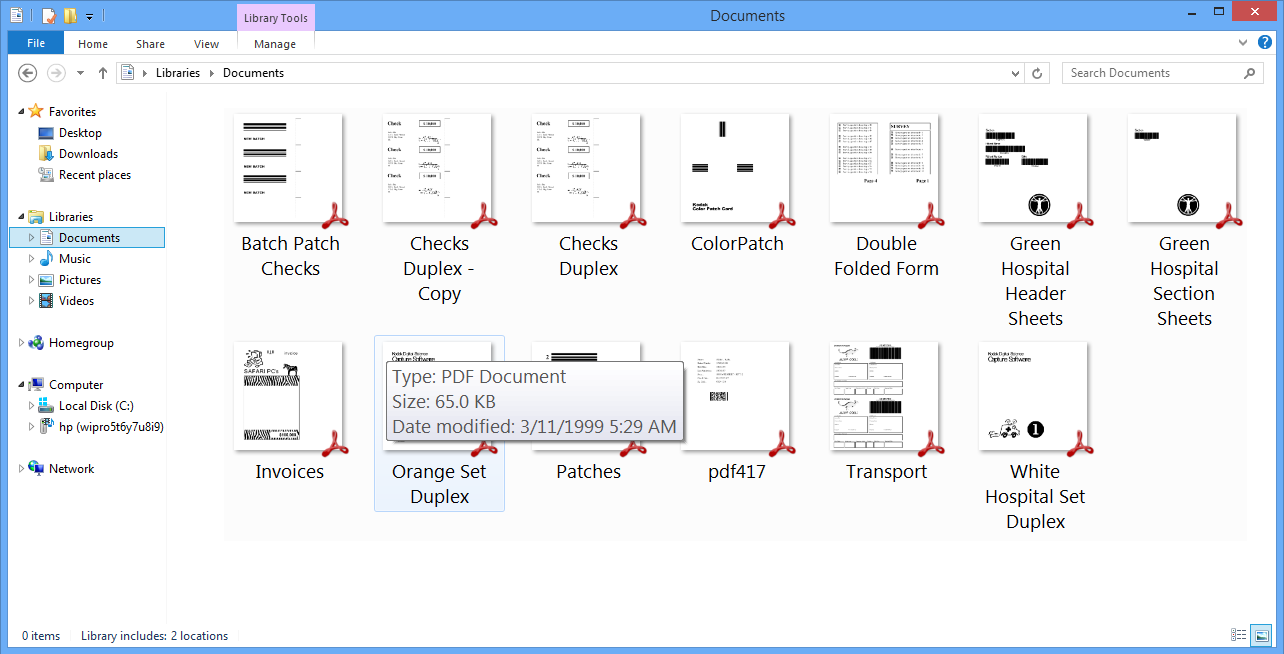
Does Dolphin have a similar preview style? The only two options I know of are to either display an icon associated with a certain filetype or a preview/thumbnail of the contents of the file.
Perhaps you need to enabled previews for certain file types settings/configure dolphin/interface/previews
This controls the preview in the information pane AND the icon if you have one of the icon views enabled. You may also need to adjust the size of the preview icon size slider in the view tab for each view.
Yes, Dolphin has had this feature as long as I can remember.
The list of supported file types grows by installing certain software packages, which maybe a bit tricky for new users though. As a result, it may also contain a number of duplicates.
Those options even include MS Windows images and executables, but “Office Documents” option has recently stopped generating thumbnail images, and begun relying solely on embedded thumbnail images they contain, which means you need a shell script to generate and embed one if it doesn’t have it.
This is the preview most of you are all talking about. I already have the setting that @reisub mentioned enabled already. What I am asking about is if Dolphin can have a preview+overlayed icon of the application that opens that file, similar to what Windows File Explorer can do. Here is an image of what I mean (the same screenshot as before overlayed with the GNOME Papers icon).
Ah, you want the thumbnail (the content preview of the file) AS WELL as an icon of the program that will open the file on the bottom right corner of it? Let me research if it’s possible, I’m inclined to say no, though, I don’t remember that being a feature
It looks nice. Additionally, if other documents, images, and filetypes have similar types of content (i.e. text), it can be difficult to quickly tell from the preview if this is a .odt, .pdf, or .png from just a glance. Once you know that, the preview allows you to recall what was in that file.
@4Arcturus I think what you’re after is the preview of the file as an icon (already implemented) AND an application icon overlay in a corner of that icon that shows the current default application for that file mime-type.
I’'m pretty sure that functionality doesn’t exist at present but may potentially be possible with a plugin.
Oh, this looks like a new feature request to report at bugs.kde.org under the category “wish list”.
Dolphin will just need to place a small icon of the default app at the bottom-right corner of the preview image as an overlay as it does with symbolic links, for example.
Ah, I understand now. Thing is, Linux doesn’t hide the filename - so you can see from the filename… but sure, you’d have to press F12 to toggle the preview to get the PDF icon to show…
However, that’s not too clever - because we don’t rely on filenames, and if you remove .pdf it’s still a pdf…
So sure, I’m voting for this feature - enable overlays to show the ‘type’.
still not clear to me where the icon badge is supposed to be.
there are previews on the file icon itself, and there are previews using F11 and it needs to be clear which of these previews are supposed to get the badge showing the default application icon.
also, such a feature would introduce churn to the thumbnail process every time a default application is changes in settings > file associations.
It’s basically an icon overlayed in the bottom right corner of the file icon. I’m not a fan of it myself, but there is an option in Windows to use a preview of the contents for the file icon and overlay a small application icon in the bottom right corner to indicate which application will open it if you double click. Here’s an example: https://www.win10pdf.com/iconpreview.png
In my mind it’s one of those GUI tweaks that slow things down since the OS either needs to generate the preview and lookup the default app on the fly or cache it somewhere and look it up when rendering the file icon. It might seem trivial but it’s these sort of things that result in increased disk access, or increased memory overheads caching the info in advance, or both. Personally I wouldn’t implement it as it really doesn’t add anything unless perhaps you have multiple files in different formats with different default applications, but then really most people know what their default applications are.
i agree the utility in windows is higher since windows abstracts away the file extension, and i guess this was their form of an apology.
but in dolphin the file extension is always visible, so you know what the file type is and what application will open it… and even if you are unsure, you can right click to see what the default is
That’s a little bit more complicated than that. It can also infer the MIME type of the file (mostly by looking at the start of the file to look at usual headers), so if you remove the extension it can still show what type of file it is (or at least one it looks like, e.g. archive-like files like .jar and friends are detected to be opened with Ark). I don’t remember if file extension always takes precedence though.
Anyway, I think it could use the usual code path for showing the usual icon from non-preview mode but add it with the thumbnail (maybe if the preview is big enough to make sense), so it doesn’t add much overhead as it already computes file type for this and also to call the good thumbnailer.