#1 - Shortcuts/links of folders not pointing to their actual path
Let’s say that you have a folder inside of your ‘Videos’ folder named ‘lorem’ and inside of that folder, there’s another folder named ‘ipsum’. The full path would look like this:
/home/username/Videos/lorem/ipsum/
If you then create a link to the ‘ipsum’ folder, put it on your desktop, and open it, the path will now look like this:
/home/username/Desktop/ipsum/
This is a problem for 2 reasons:
The path is wrong.
You can no longer easily jump from the ‘ipsum’ to the ‘lorem’ folder by clicking it in the location bar.
#2 - Tabs reappearing when opening windows in Dolphin
When I close a window, I want it to stay closed, not clutter up my screen as a different tab the next time I open up a window in Dolphin.
A few days after writing the paragraph above, the problem went away. It was frustrating while it lasted, so I’m still going to bring it up.
#3 - Icon Sizes of the ‘Details’ View Mode being too large
All 3 View Modes in Dolphin are almost indistinguishable from each other with one of the results being that the icons in the ‘Details’ mode appear as being too large.
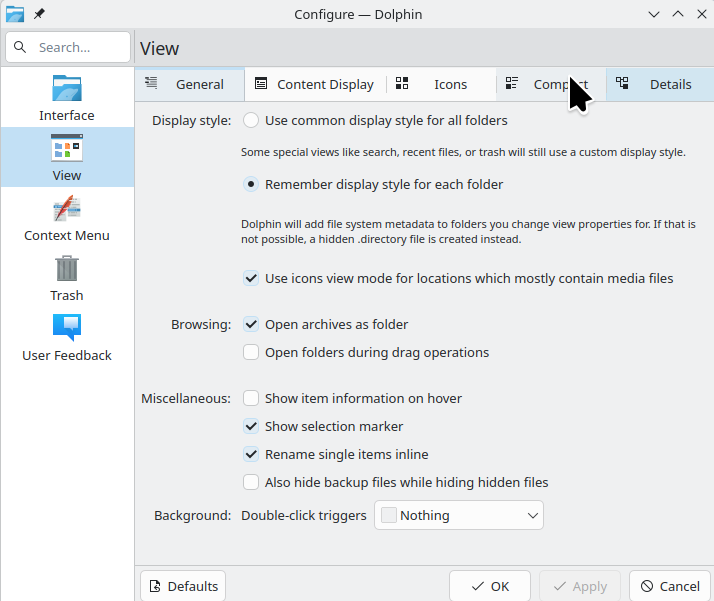
To fix this problem, do the following:
Open Dolphin
Click the 3 horizontal lines in the top-right corner to open up the drop-down menu
Hover over ‘Configure’
Click ‘Configure Dolphin…’
Click the ‘View’ menu
Click the ‘Details’ tab
Drag the ‘Preview icon size’ slider 2 steps to the left (from ‘Size: 48 pixels’ to ‘Size: 22 pixels’)
Click ‘OK’
I hope this setting can be made the default.
#4 - View Modes being universal
I would prefer if each folder could have its own View Mode instead of having the selected View Mode applied to all folders. Like in Windows, the default View Mode of a given folder would be automatically selected based on its contents.
#1 Is true, I did not notice until now. I’m using the desktop for other kind of stuff. But I would also dislike it, if I would rely on it. You could workaround it with desktop files. Create a new one and execute Exec=dolphin /home/username/Videos/lorem/ipsum/. This way you even can start split view (--split) and multiple folders at once (hit space between folder-addresses).
#4 This is simply a setting to switch. Check out Dolphin settings, vertical View-tab, there is a description next to the setting telling what exactly its doing.
I don’t think they’re wrong one should be able to go up to the parent of the linked folder instead of say the desktop. An option for this behavior would be nice.
is correct, at least that’s how links work in Linux as I have understood them. Now, if you want an icon that is a shortcut, you can use the “add icon” option, but that is just an application shortcut for Dolphin itself, to open to a specific directory.
Not quite the same thing, but it might be what you want.
The other way is to right-click and use the Show Target.
Now, link behavior for the OS , the paths may be correct and does make sense, but in terms of navigation using a file manager, going to the target location is very valid action and expectation. A ‘shortcut’ as opposed to a ‘link’. It has been mentioned here recently.
I have no idea, I can’t recall that ever happening to me, but maybe I never noticed.
Too small – I want previews to be more visible. At 22, they are sort of useless, for images and video files . Switching previews off, the icon size matches the other views. Which takes us to number 4:
There is the option for this already. “Display Style”, though there is no automatic style option, except for media files.
Thanks for the suggestion but I can’t get this to work.
Thank you.
My request will then instead be that the following settings become the default:
Configure > Configure Dolphin… > View > General > Display style: > Remember display style for each folder
Configure > Configure Dolphin… > View > General > Display style: > Use icons view mode for locations which mostly contain media files
I wanted edit the OP but it seems like I’m not allowed to.
Previews are not supposed to be easily visible in the Details view mode. That’s what the other 2 view modes are for.
In fact, previews shouldn’t be visible at all in the Details view mode. The icon should instead be that of the software associated with the file type.
The path can be whatever you want, but if it contains empty spaces in the name, you have to write the space as " " to tell your execution it is no new folder. The icon can be whatever you want, I wrote the default folder icon that it looks like a normal folder.
After you saved it to desktop, you have an orange [!] mark on the file. It disappears once you opened and accepted the question. You also can change the name of the file to whatever you want, it should (no guarantee) even work without .desktop.
Woah, another shock to the system. This is definitely strange - no question about it (and I’m curious why I didn’t already have this understanding clear in my mind after years of browsing).
So dragging to create a link is equivalent to mounting the folder in that location when you open it from there… so /mnt/PP can become /Desktop/PP for all intents unless you choose to ‘Show Target’.
PP is at /mnt/T4/Resources/Backgrounds/Favourites/PP
Link is at ~/Desktop/PP
I thought the link would open that folder, and it does - but shows /Desktop/PP in the titlebar… and /home/ben/desktop in the Breadcrumbs.
This seems dishonest, or just fake… but then I remember sitting in an office in the early 1980s at a keyboard with a small CRT putting in data to a mainframe 3 floors down through a pipe.
A link is not a simple reference, it is a real folder it is own right.
Hmmm a LINK is not a SHORTCUT.
Would be nice to have something like this. I love links being as easy to make as they are because it lets me straight up lie to programs and do really easy and simple deduplication all over my system, but a regular ‘shortcut’ a la windows would be nice, I made those all the time. They’d be useful for jumping to a spot where you maybe need to only vaguely be close to the actual target.
Speaking of, paste shortcut/link should totally be implemented, it’s another thing windows has, even a paste link would be nice since the current procedure is right click submenu paste location then hit enter.
My post was describing how to create one. That is the Linux way of Links. Of course it could be easy via right-click and Clicking “create link on desktop”, but links themselves exist.
By the way, as long as this is no default behavior, you can create your own menu entry. You have to create another desktop file in ~/.local/share/kio/servicemenus and execute a script that automatically writes a new desktop file that links to the thing you right-clicked.
In fact, .desktop files on Linux are cooler than links on Windows. You can do whatever you want and execute any kind of command and bind it everywhere on desktop.
the link is a stand in for target folder, made by the linux file system when you drag a folder to the desktop and choose “link” (or create ln -s on the command line).
what you are asking is for dolphin to ignore the stand in and take you to the actual folder.
it’s not an unreasonable expectation, but the fact that dolphin instead shows you the link should not be unexpected, since that is what you clicked on.
as stated, you can right click on show target, but that context menu option does not exist on the actual desktop (maybe it should).
So, set the details view to not show previews, and they will be small – the setting you changed for this is specifically for preview icons. The non-preview icon size for Details view is actually smaller than what you set.
AFAIK, previews cannot be disabled for just a single view mode, so if previews were disabled, they would also be missing from the ‘Icons’ and ‘Compact’ view modes, which is undesirable.
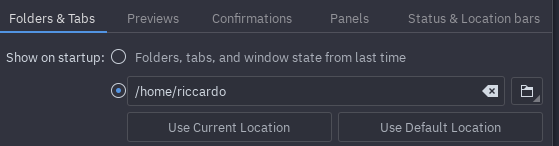
The upper radio button is still selected in my settings despite the fact that the problem is no longer occurring.
Besides, my point is that the setting should not be enabled by default.
I agree with you; you could check bugs.kde.org to see if there is already a bug report on this and, if there isn’t, you could create one to highlight that this is not the expected behaviour.
I found out that this particular bug came from the Flatpak version of Dolphin, which is even buggier than the bundled version. Apparently all file managers have issues with their Flatpak versions.
I’ve now reverted back to the bundled version and won’t be pursuing the bug any further.