How to Automatically Assign Applications to Specific Virtual Desktops in KDE Plasma

Enhance your productivity by creating a structured workspace where applications automatically open on a designated Virtual Desktop. This guide shows you how to use KWin Window Rules to achieve this.

Step 1: Plan Your Workspaces

Before you begin, decide on a logical set of categories for your applications. This will determine the Virtual Desktops you create.

Example Categories:

  • Education

  • Office

  • Graphics

  • Internet

  • Multimedia

  • System

  • Utilities

Once you have your list, create a corresponding Virtual Desktop for each category.

Step 2: Create a KWin Rule for an Application

For each application you want to map, follow these steps:

  1. Launch the Application you want to configure.

  2. Access the Window Settings. Right-click on the application’s title bar and select More Actions > Configure Special Application Settings.... A configuration window for KWin rules will open.

  3. Add the Virtual Desktop Property. Click the Add Property... button at the bottom. In the list that appears, find and select Virtual desktop, then click OK.

  4. Assign the Desktop. A new row for “Virtual desktop” will now be visible.

    • Use the dropdown menu to select the desktop you want the application to open on.

    • In the dropdown next to it, choose Apply Initially. This is the most flexible option, as it places the window on launch but doesn’t prevent you from moving it. (Alternatively, select Force to permanently lock it to that desktop).

  5. Save the Rule. Click OK to confirm.

Step 3: Repeat and Enjoy

Repeat the process in Step 2 for all other applications you wish to automatically place. The next time you log in and launch your applications, they will open directly on their assigned desktops, streamlining your workflow.

2 Likes

does this not result in all these applications being open at the same time?

i think this was the problem activities was trying to solve.

The technique can also be used with activities, e.g. make sure certain windows are in certain activities.

For example I have special window rules for KMail that put it onto “Desktop 2” and “All Activites”.

I.e. “Desktop 2” is my “E-Mail Desktop”, regardless of activity.

1 Like

No.

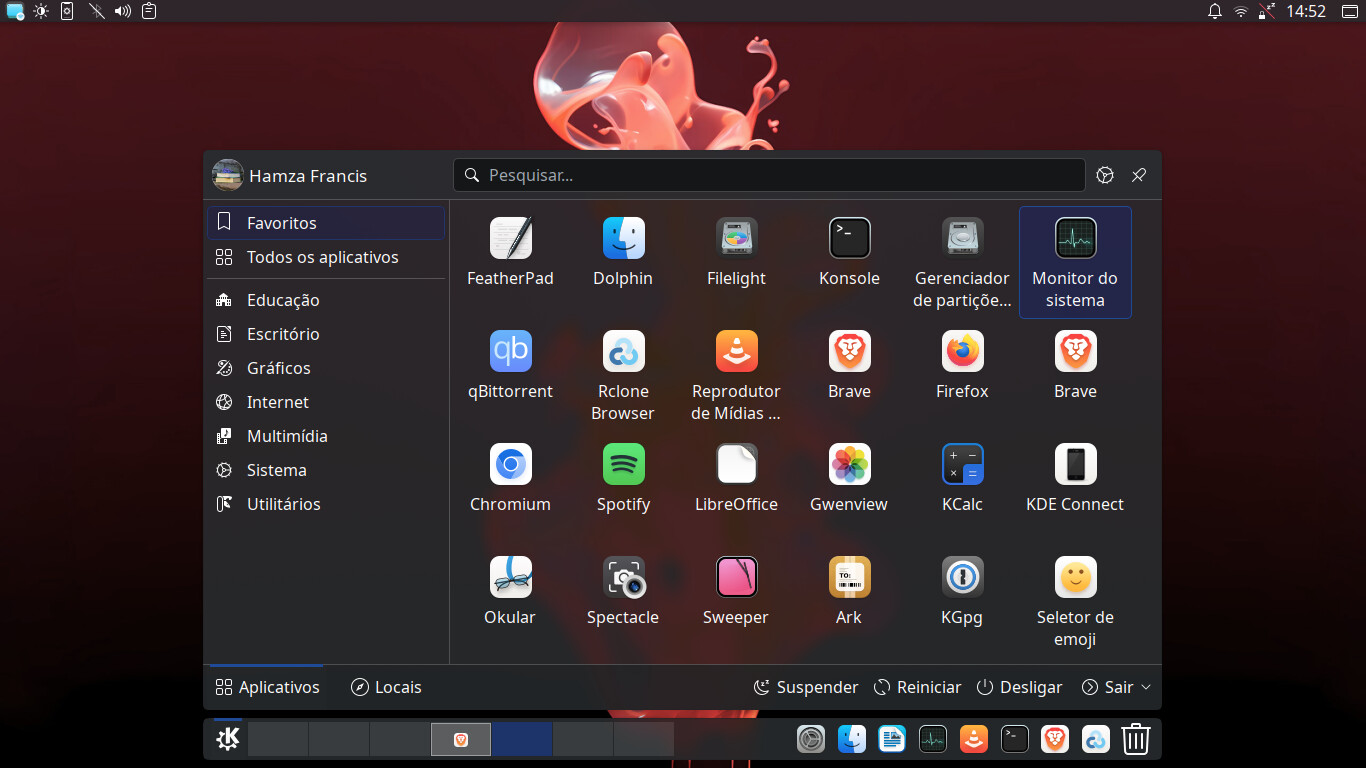
The application opens automatically and immediately in the workspace to which it is mapped. In my workflow, workspaces follow the name and number of application categories defined in the FreeDesktop specifications, which are present in my system. The mapping is not forced; although Brave is in the Internet category, if I’m using the Office workspace and want to use Brave there, I can manually drag it to that workspace.

I’ve been running SuSE / openSUSE since 8 and have never used Activities.
Always 6 desktops.
Shirley Laughing

1 Like

so, yes then.

all these applications would be open at the same time (just on different virtual desktops).

the advantage of activities (in theory) is that they applications would not be launched until you selected the activity where they live…. that is not the case with virtual desktops, they are all running all the time.

Hello,

I use activities and use the method presented by OP. It’s cool of you, Hamza_Francis, to have taken time to redact all the steps. :+1:

I would add that you can be more specific by adding some rule about the window title or type or role in your window rule.
Example : I use it to force Thunderbird in my “mail” virtual desktop (like krake), but only for the window with the role “3pane” so that only the main Thunderbird window is blocked there, but the Thunderbird window to write a new e-mail can be positioned where I want. :slight_smile:

I want to note that in my case (Plasma 6.4.5 on X11), windows rules are sometimes not doing what I want.
Example : if a program is launched by me, the window rule “Apply Initially” to make it on all virtual desktop for example, applies, but if the same program is launched automatically when my session start, the window rule is not applied, I must use “Force”.

I also use activities but I don’t make them freeze or stop the programs that I launch in them.
I don’t see the point, as I have 32GB of RAM and I don’t launch programs that use much CPU in the background.

Is there anyone that use activities with stopping the programs when you switch to another activities ?
I would be interested to hearing your use-case, because I can’t think of any where the hassle of reopening all the programs is better than having them already opened.
Besides, I don’t trust session savings in Plasma, even on X11 (I certainly worries too much, but it is what it is).

I suppose that, theoretically, stopping all browsers, mail app, etc, for gaming for example, could do something with a laptop with integrated graphics and a battery.
But I’m on desktop (always plugged) with a somewhat powerful CPU and GPU, so I suppose that’s why I don’t see the point in closing programs in activities.

1 Like