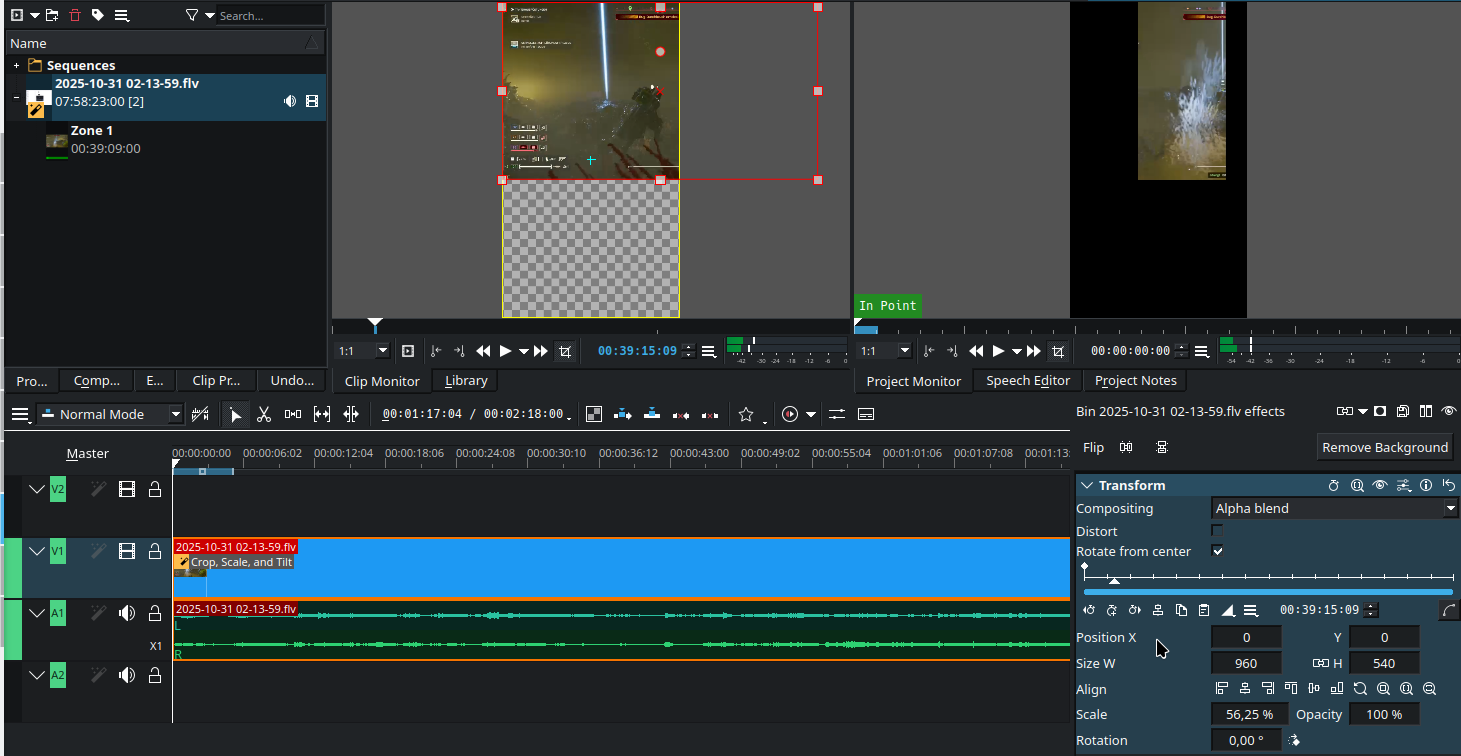
For short video proper. Said I have a 960x540 video, for take a vertical screen advantage and I need Its trim Central 540x540, leave my 540x960 project have 420(=960-540) space below to put other things.
But since Project have set to 540x960, Clip Monitor is forced to 540x960 make I can’t correctly edit my 960x540 video.(“Settings→Misc→Keep clip original frame size on import” doesn’t help on this) I don’t think this behavior is correct, for example if I have various frame size videos, that would be headake. I mean why I should deal with the blank(and more seriously the space that can’t fit in Project aspect ratio?) I don’t worry crop it by myself, But Clip Monitor auto crop it and the result is awful.(I lost all video that not show in Clip Monitor as this show)
What happens when you click on
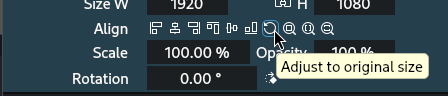
After click:
Effect/Trasform/Scale: 100%
but still is same layout as above Clip Monitor show.
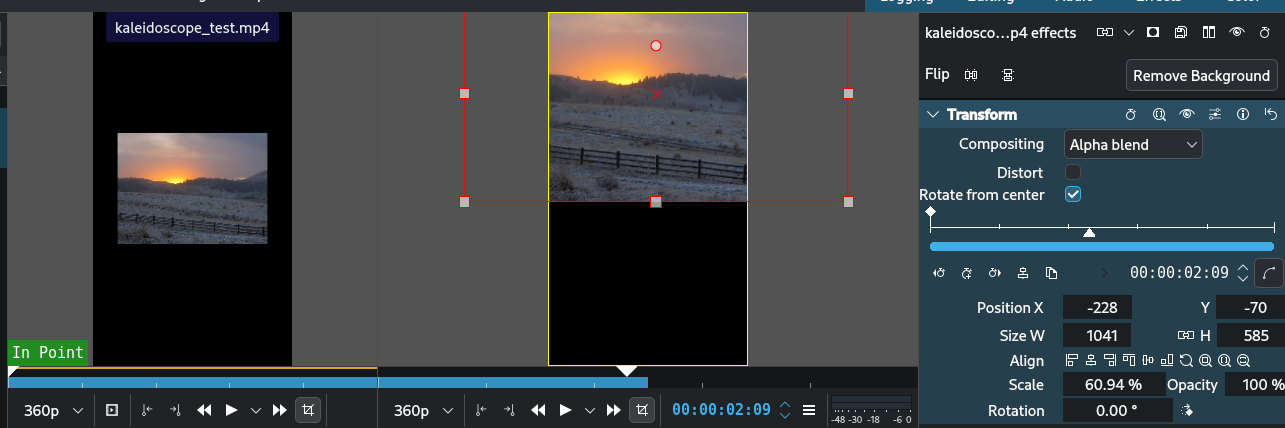
Hmm, this is how it looks on my computer using Kdenlive 25.08.2 Flatpak on Pop!_OS:
I created a 540x960 project and added a 1920x1080 video clip. No cropping or anything like that.
Yes, and how I crop the result 1920x1080 to for example 540x540, If I add a Crop Effect below, It will crop video show only in Project Monitor (for example, Crop Edge will crop right from Monitor, not from video right edge.) then I will never get video outside from 540x960.
First of all, you don’t need to crop the clip if you move it into the desired position in the project monitor. As you can see in my example, I moved it somewhat in the center of the PM. Everything outside of that window is not shown.
Secondly, it makes a difference whether you apply an effect on the clip in the bin or on the clip in the timeline/sequence.
Thirdly, I strongly recommend to use the Crop, Scale, and Tilt effect for cropping. Edge Crop behaves weirdly, IMO.
So, if you crop the clip in the bin, the crop values are applied to the clip’s dimension; if you apply the crop to the clip in the timeline/sequence, the crop values are relative to the project dimensions.
1 Like