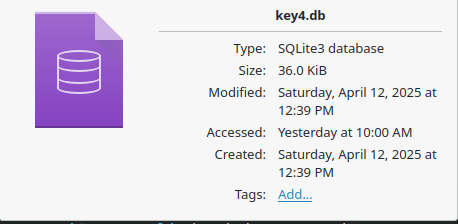
Currently, the tooltip feels quite large, bulky, and not very informative.
Why show a file thumbnail in the tooltip? There’s already a thumbnail in the file manager itself, which is enough to get a general idea of the file. Viewing details in two thumbnails at once can be confusing, especially with images. Sometimes the tooltip can cover 65-70% of the screen for Full HD images, but only shows 5-7 lines of text with a lot of empty space.
Regarding the info block in the tooltip—why is the text center-aligned? Some fields like “tags,” star ratings, and “comments” might be useful for some, but they aren’t really used by most Dolphin users.
The date/time formatting in the tooltip seems overly detailed. For example, instead of a simple date and time like
text
11.03.2005 17:30
it currently shows something like
text
Thursday, March 11, 2005 at 5:30 PM Pacific Standard Time of the birth of Christ by Saint Virgin Mary
If I ever need to know the exact weekday the file was created, I could just open a calendar. It feels like the date and time are turned into a lengthy story, which isn’t necessary.
Do we really need to show “Created,” “Accessed,” and “Modified” dates separately? Something simple like: created: 11.03.2005 accessed: 12.08.2005 modified: 13.09.2025
would be enough for understanding the file’s history.
File type—why is this even shown? As a regular user, I just look at the file extension to understand the file type. For example, .mp3 means an audio file, and .jpg means an image. If it’s a .bin file, I likely don’t care whether it’s ELF, Mac OS, or Windows executable—I’m not going to inspect it inside Dolphin.
Regarding the “height,” “width,” and “resolution” fields—why have separate height and width when there’s a resolution field? For example, “1x1980” means the image is only 1 pixel high, but 1980 pixels wide, which is confusing.
I just want to make file hints more convenient and readable. It follows three principles: minimal space, maximum benefit. It’s not normal when you move your mouse around the file manager, and the hint flutters like a butterfly across half the screen.
even if you reduced the amount of info shown in the tip, it would still flutter like a butterfly
i just use F11 info panel when i want to see that detail… it’s the same information, but confines it to a specified area of the screen so it’s not in the way.
the thumbnail i assume it help orient you to which file is being detailed, perhaps that can be a toggle.
timestamp formats are something you can change in system settings
as for the formatting of the info, i rather like the two column layout and find it easy to read.
the contents of the info panel is editable, just hit F11 and right click on empty space, choose configure from the menu and uncheck the stuff you don’t want to see.
A two-column display is fine.
But not with allig-Center text. A striped tooltip is also fine.
The general purpose of a tooltip when hovering over a file is to give the user a quick overview of the file, without having to open the file’s properties. With all the parameters a file might contain, like what camera the .jpeg was taken with, or what program the music was recorded with. Pressing F11 opens the “file preview.”
Its purpose is to give the user more detail when switching between files (selecting). If it’s an image, it will show a larger image. If it’s a text file, it might show its contents. If it’s a video, it might show some frames.
What I want to say is that these are two different elements that perform two different functions.
A tooltip provides information about the file. What it is.
A preview provides an understanding of the file’s contents.
Right now, we have two options that perform two functions, and they perform them poorly.
the tool tip and info panel show the same info to me and the two columns are justified to bring the text together in the center, which i think is more readable than any other arrangement… i’m using plasma 5, so maybe you are seeing something different.
also you can tailor what is shown in the info panel using the context menu and then the configure menu within it.
unfortunately only the tailoring saved under the config menu seems to carry over to what is shown in the tool tip and perhaps that is a bug worth reporting at bug.kde.org
for instance compact date format, or display of the preview toggles available in the info panel context menu, do not get reflected in the tool tip, when perhaps they should be.
I think the answer here is that there’s a problem with the ‘tooltip’ being, instead, the ‘information panel’.
I would like a setting - I would like normal tooltips in Dolphin, as I can’t stand this huge popup obscuring the entire view… I keep the hover disabled, and use Ctrl_i to show more information (panel toggle).
These are from Krusader - rather more manageable (and a key-toggle is available to open the info panel if we need the ‘full monty’).
Frustratingly, I can disable the file preview and select items for the info panel (which is temporary/toggle-able), but those settings are not available for the ‘info preview’ which we might agree is not really very similar to any other tooltip in the system.
Maybe a stupid question from me, but how can you switch on these tooltips, not that I want to use them, but I would like to see how they look. I can’t find a setting about tooltips.
When I type tooltip in the Dolphin settings it shows me nothing.
It’d be very handy to be able to bind enabling the hover tooltip to a keyboard shortcut.
I’d also like to show and hide the meta data panel with a keyboard shortcut, both in the hover tool tip and the “Information Panel”.
The information I want is the thumbnail, and the metadata fields are mostly empty as I have baloo disabled, or using another DE, making the “metadata” panel dead space.
I’d forgotten I’d made that post. I expect I’ll just keep making the same comments over and over, as my mind ebbs away like HAL’s does at the end of 2001.
Sorry, I didn’t mention it right away. But yes, I’m using Plasma 6 and Dolphin 28.08.3.
And by the way, if you use the file add dialog, for example, from the Chrome browser, the file preview will not show file properties.
My account is too new to upload images. That would allow me to express my thoughts more clearly.
Yes, that’s exactly what I’m talking about. That it’s just too big and impossible to use. Yes, I’m brand new to Linux. But after 15 years of using another proprietary operating system, using this tiny feature significantly improves my quality of life. And it’s so simple that using it becomes something like breathing. You don’t think about it. Turning it off isn’t an option for me. The function itself is very useful and intuitive. In general, tooltips are a very powerful tool. And teaching users how to use them is incredibly easy. They’re easy to remember. And if users have already learned this trick, they’ll use it everywhere. If they hold the mouse pointer down to get more information, they’ll use it everywhere. In Dolphin, this is a pain for the user.
Here. By the way, if you hover your mouse over a file in the middle of the screen and freeze the mouse on it for a few seconds, the tooltip won’t appear (there’s not enough space for it, so it won’t be displayed).
Here you can see the file properties. But I don’t need file properties when I use the file preview. I need to understand whether I clicked on the right .jpeg, or whether I need to click on another one that contains what I’m looking for.
Voting is good. But I want to point out that if the preview window doesn’t have “file properties,” nothing critical will happen. Because you can still get a short tooltip by simply hovering over the file.
This is roughly what I’d like to achieve with the appearance.
Additionally, if the image is centered around the middle of the preview element, this will also make it easier to read. Because regardless of the aspect ratio, the image won’t “jump” up and down. It will always be centered and scaled to the edges of the preview element.