
Hi there @kokoko3k - I just dropped by to tell you exactly how to achieve a clean Kwrite interface, but mine’s also borked in exactly the same way yours is, there’s the same annoying (unset and fixed) toolbar and I see no option to disable it.
I usually use kwrite with absolutely no menu or toolbar items visible, so this is visually annoying.
Kwrite: Version 26.04.0
KDE Plasma Version: 6.6.4
KDE Frameworks Version: 6.25.0
Qt Version: 6.11.0
Toolbars are also all empty in settings… also confirmed with a fresh user account.

I hope this is not intentional!!!
Until recently, enabling the ‘auto-hide tabs’ option was sufficient to hide this bar; however, for some time now, this setting has become ineffective."
PS @ben2talk: You don’t actually need to remove all tools/actions from the bar to get rid of it (the toolbar won’t disappear entirely, but will become significantly
smaller). Check if you have the following unchecked:
Settings → Toolbars Shown → Main Toolbar and
Settings → Toolbars Shown → Hamburger Menu
Hi, cheers - I missed that I’d left the Hamburger Menu ‘enabled’ for that screenshot…

Which is weird, because the Hamburger Menu doesn’t need adding, it just works when the main menu is disabled) - but it can’t go smaller or be removed - but where did it come from?
I never saw this before, sure it’s a recent update.
it’s the navigation bar, and mine goes away when i uncheck this box
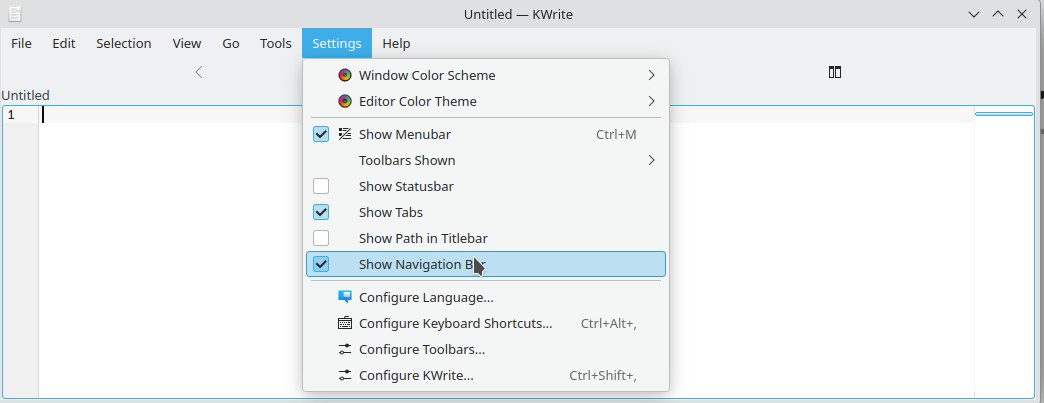
ctrl+m gets rid of the menu bar.
- Enabled
- Disabled
- KDE Plasma Version: 6.6.4


kwrite 26.04.0
KDE Frameworks Version: 6.25.0
Qt Version: 6.11.0
Methinks you just didn’t get there yet 
Hold on - that’s the TAB bar…
And a bug is filed…


Navigation bar with multiple tabs is going under the tab bar, so it is separate thing. Unfortunately, in linked by @ben2talk bug report they discuss removing “Auto hide tabs“ options instead of repairing regression. I do remember that in Kate tab bar was always visible (although i had checked “Auto hide tabs“ option), so i switched to using Kwrite - sad day for me. 
what’s adding to the confusion (for me at least) is that the features of the bar shown in the original image by OP (the two < > nav arrows and the two icons on the right) will appear if EITHER the tab bar OR the nav bar are enabled.
with two files open and kwrite configured to use tabs i get these results (plasma 5)…
both Show Tabs and Show Navigation enabled:
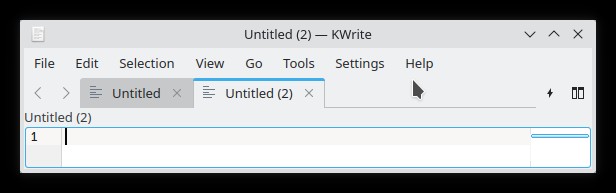
only Tabs enabled:
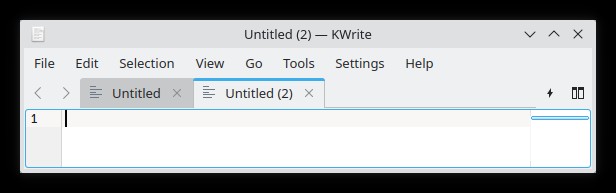
only Nav enabled:

neither Tab nor Nav enabled:
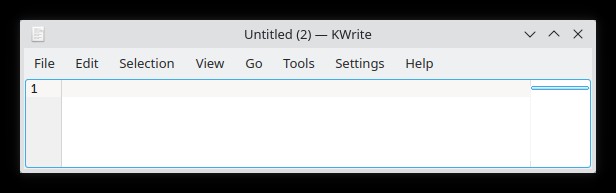
worth noting is that under no conditions is the bar shown with only the <> nav buttons and the two icons… there is always either tabs or the path shown as well.
the plasma 6 glitch must have something to do with this duality behavior and the case of neither tabs nor nav being enabled has somehow defaulted to still showing the buttons.
edit: added a comment to the bug report pointing this out.
Yeah, this needs to be fixed properly.
A quick solution might be to just revert the patches that broke this behaviour.
Should be fixed with https://bugs.kde.org/show_bug.cgi?id=515133
Sorry that we did regress there.
No, that’s great - it happens from time to time.
All part of the fun