How can I make pressing Win + - to post a medium dash symbol instead, exactly the way it does in Win11? I don’t even know where to start. I am on Arch with Wayland, and everything I find is about X11. I can not use evdev filter because it can only replace a key with existing key, and there is no standard key for a medium dash.
hi, welcome.
the WIN key or META key in linux is the key between ctrl and alt on the left side of the keyboard.
the META++ and META+- shortcuts are already assigned to the desktop zoom function of kwin, so if you re-assign it you will loose the ability to zoom out on the desktop using the preset shortcuts (you can change them tho).
to create the long dash in linux you will:
en dash (–) hold down ctrl+shift and type u the enter the code 2013
em dash (—) hold down ctrl+shift and type u the enter the code 2014
to assign this to a shortcut of your choice such as META+- you will need to use a third party tool something like input-remapper with it’s macro function
to create the long dash in linux you will:
en dash (–) hold down
ctrl+shiftand typeuthe enter the code2013em dash (—) hold down
ctrl+shiftand typeuthe enter the code2014
That’s a GTK only shortcut, it doesn’t work on kate or any other KDE app (or even on LibreOffice when using the kf5/6 UI; it works on firefox, though). AFAIK there is no Plasma equivalent for that. There is a “special character” krunner, but it’s not as convenient. You can drag and drop (or copy/paste) special characters from kcharselect, but nothing else.
For these kinds of characters, I use the Compose key and insert three small dashes.
The compose key let’s you access a variety of characters behind combining usual ones. You have to go to System Settings > Keyboard > Key bindings > (Enable key bindings) Position of Compose key. I use the right Meta button because my keyboard has it:
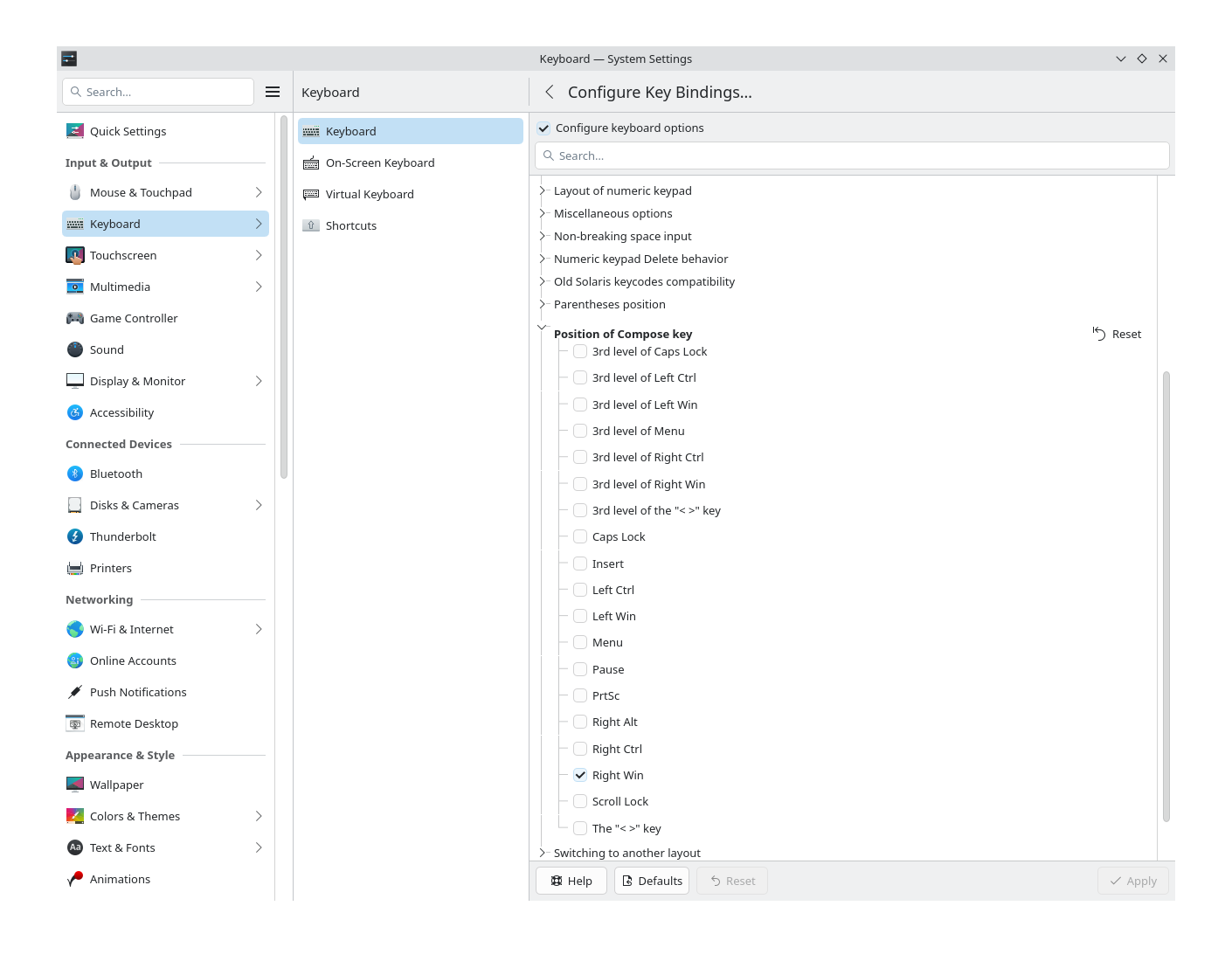
In this screen-recording I first insert a simple “-” then remove it; what you see at the end is me clicking the Compose key and then 3 times “-”, which prints “—”:

There are full lists of these combinations online: Linux keyboard text symbols: Compose key shortcuts
And as far as I can tell, it works consistently across both GTK and Qt apps.
Thanks, I will try to get used to compose key. However now Compose-minus-minus-dot does not look like a convenient thing to type every time.
I’m not sure what ‘medium dash’ means…
But Compose- - - prints for me —
Take a look at your .XCompose file – and set a compose key. in this forum, just typing double hyphens gives this dash… –
I cannot find what is meant by ‘medium dash’ though.
You can search for Merriam–Webster article on why there are three dashes in English. The medium dash has more uses in Russian: a long dash without spaces is unusual to us, so it looks more proper to use a medium dash with spaces instead.
Dashes in kcharselect:
- (minus or hyphen)
‒ (figure dash)
– (en dash)
— (em dash)
― (horizontal bar)
⸺ (two em dash)
⸻ (three em dash)
Searching for ‘medium’ in kcharselect gives zero search results.
The whole point of .XCompose is that you can define your compositions, so if you find it tough to do that, you can simply make it something else - like ‘compose ’ for ‘medium dash’ innit?
The dash you’re referring to is called ‘en dash’… used for ranges (like from 1200–1350)… which you definitely CAN find in KCharselect.
Something else I’d consider, if I were typing things regularly and couldn’t be bothered with Compose, is to simply modify the keyboard layout and put it on the third layer - perhaps on the - _ key (between 0 and =).

Currently mine types -, shifted _ then third layer — shifted –… so I’d swap the shifted with the normal third layer depending which I wanted to type more frequently…
that would align more closely with your plan to press ‘Win’ with ‘-’ but instead using the 3rd level chooser.
For many years I use the KDE desktop and in there I setup a different keyboard layout which has a lot of extra keys available. This is the map they add to it:

In KDE this is how you can get it:
- Open KDE system settings
- Click on Keyboard
- Then click on Keyboard in the second frame
- Above the large frame on the far right side click the Add button. In the new pop-up window scroll down to Eurkey (US), select it ( I use the one with the European flag) and click OK.
- Confirm the new layout in the system settings by clicking the Apply button in the bottom-right corner.
- To see the picture I added here, click the newly added layout and then on the far right click the button with the 3 dots. You can print it out.
To get the key you asked for use this:
Used key: - key (right of the 0 key on top of the keyboard)
- = normal key (dash or minus symbol)
_ = shift + key (underscore symbol)
– = right-ctrl + key (en symbol)
— = right-ctrl + shift + key (em symbol)
Using the right-ctrl key uses the symbols on the right side of the keys, shift always chooses the top ones.
how does one do this “simply”?
in settings > input devices > keyboard > layouts > configure > Add
i only seem to be able to choose between a l-o-n-g list of preset keyboard layouts… there is one option that says “A user-defined custom layout” all the way at the bottom of the list, but it gives me this error when i try to preview it
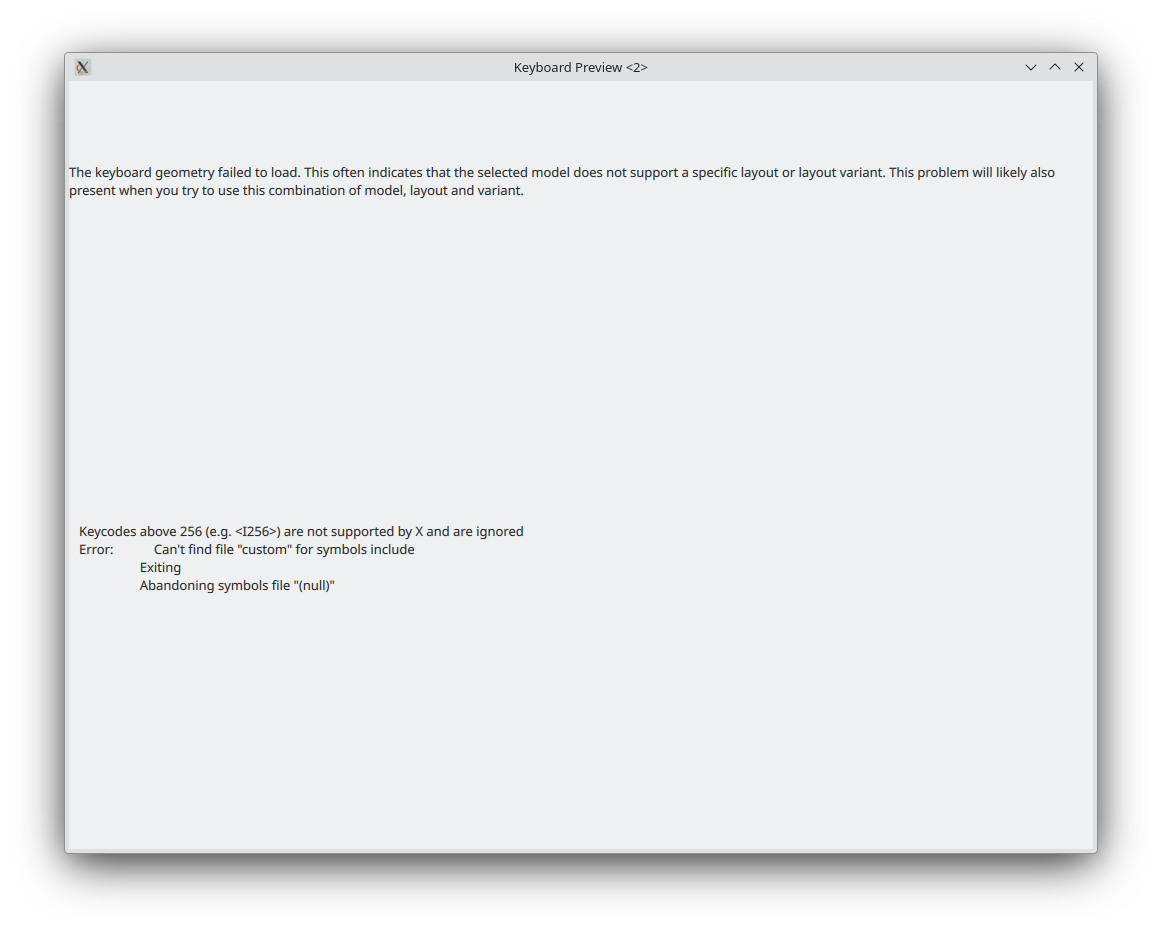
not sure where to go from there….
EDIT:
figured out how to create my own keyboard layout to add the emdash
here is a preview of the entire mapping

using the Compose key you can get the em dash — by typing in the key combo
Compose + minus + minus + minus
so if you have gone to settings > input devices > keyboard > advanced
and set Postition for compose key to Right Ctrl, then you would type
R_Ctrl + - + - + -
and an em dash should appear in your application (console, kate, libre office, etc).
if you now want to assign that key combo to a shortcut, you can use input-remapper
i choose the shortcut L_Ctrl + Alt because my Meta key already does something else, but is should work for either.
choose your keyboard under devices, then create a new preset, on the Input side press Record to capture the shortcut key combo you wish to create L_Ctrl + Alt, in my case.
now on the right side, for keyboard input type in the text box
key(KEY_RIGHTCTRL).key(minus).key(minus).key(minus)
these are the four keystrokes that will be issued when you press the shortcut combo
check the load on startup, and click Apply to activate the mapping.
now you should be able to use your chosen key combo to activate the compose function and create the em dash.
—
like that.
the answer to your question is to go into settings > input devices > keyboard > Advanced tab
check the configure box and look for the “Key to choose the 3rd level” section.
in there you will choose the option of Left Win for the windows key, hit Apply… btw, i would recommend choosing a different key—such as the right alt key—because the win key (meta) has so many handy uses in linux that you will be missing out on if you remap it to this setting.
anyway, back onto the Layouts tab you will need to see if your default layout has a mapping for the emdash, you can click on it and select the Preview button to look for the mapping
below is a list of all the keyboard layouts that include the emdash somewhere on the keyboard, usually as the 3rd shifted character on the minus key.
if you choose the Add button you can search for these layouts and look at their previews
emdash layouts (the last one is a custom layout i made for myself).
Albanian (Plisi)
Armenian
Bulgarian
Bulgarian (traditional phonetic)
Portuguese (Brazil, no dead keys)
German (Switzerland, Macintosh)
Czech (QWERTY, Macintosh)
German
German (E1)
German (T3)
German (Macintosh)
Danish (no dead keys)
EurKEY (US)
Finnish
Finnish (Dvorak)
French (BEPO)
Irish
Icelandic (Macintosh, legacy)
Icelandic (Macintosh)
Icelandic (Dvorak)
Sinhala (US)
Lithuanian (Ratise)
Latvian
Latvian (ergonomic, ŪGJRMV)
Latvian (Modern Latin)
Latvian (Modern Cyrillic)
Latvian (Dvorak)
Latvian (programmer Dvorak)
Mongolian
Norwegian
Northern Saami (Norway)
Polish
Russian (GOST 6431-75)
Russian (GOST 14289-88)
Abkhazian (Russia)
Russian (plus Ukrainian and Belarusian letters)
Russian (Polyglot and Reactionary)
Old Turkic
Old Turkic (F)
Ukrainian
Ukrainian (macOS)
English (Dvorak, Macintosh)
English (Macintosh)
English (Colemak)
English (Colemak-DH Wide)
Czech, Slovak, Polish, Spanish, Finnish, Swedish and German (US)
English (US, Symbolic-Greek and Geek)
if your preferred language layout is not listed then you will need to create your own like i did and add the mapping for the emdash to the minus key so you can access it using the 3rd level shift key.