Hello together, I’m close to switch over from Win10 to Debian with KDE (just waiting for Trixie stable release). On a live stick I already tested the functionalities a bit to make the transition smoother. While I like the quick tiling in general, I have an issue with the visuals and hope it’s just a setting thing.
Tiling windows side by side makes them overlapping the border, including the window shadow. That means, when I change the focus, the window with focus will overlap all other windows on the border. In additional the shadow makes this effect even more heavily. That confuses me all the time very much. When I want windows tiled, I want them side by side, without space in between and without overlapping a single pixel. Is there a way to adjust this spacing?
And what is with that shadow? I like it as long as windows are not side by side (for example overlapping with purpose), but I dislike it on quick tiling. I wish it would be drawn in Z direction below all tiled windows, unaffected by other windows. I guess there is no option right now, isn’t it?
And bonus question: Often I use keyboard to set window on a quick tiled position. Sometimes however I prefer it to do with mouse drag and drop. On my multi monitor setup it is uncomfortable to drag a window to the border where the mouse can transit monitors. Is there a way to make it easier like using a wider border area where the window can be dropped for tiling?
I don’t have answers to any of your questions, but I’d start by taking a look at System Settings / Apps & Windows / Window Management / KWin Scripts / Get New. There are several tiling scripts there, maybe you’ll find one that does what you want.
For the bonus question:
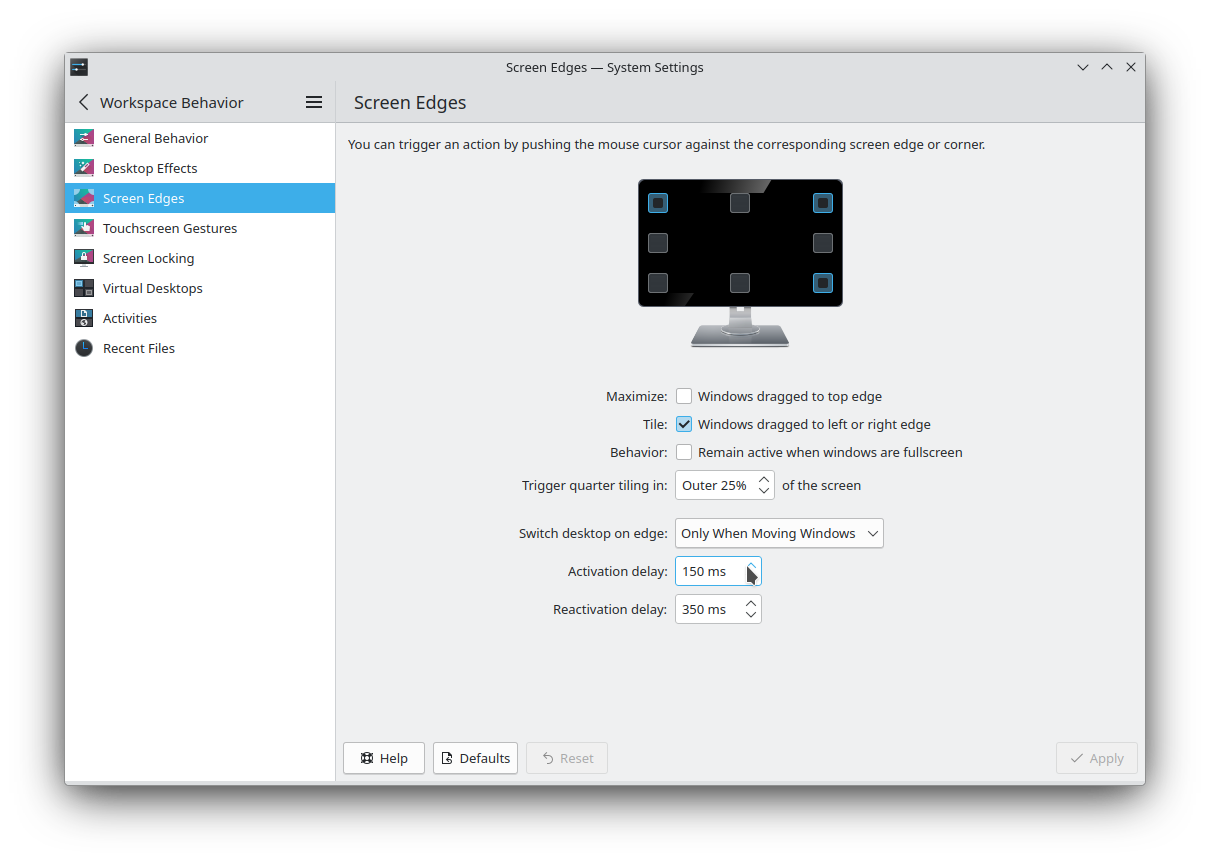
I can’t test because I’m on single monitor, but check out: System Settings / Input & Output / Mouse & Touchpad / Screen Edges
The Edge barrier and Switch desktop on edge settings might help
Also, maybe screen edge snap zone under Window Management / Window Behaviour / Movement
I see no settings in any screen edge. Is this something new in Plasma 6? I just realized my live Stick is still Plasma 5.
I was also looking into the movement tab and it just controls at what point a window snaps to screen or another window, but not at what point it tiles.
The shadow (and border) settings are actually helpful. Not exactly the way I was looking for, but it works well enough (shadow off, border tiny). I think everything else I will discuss once I switched my system, if I still have questions to that point. My goal here was to get my work space ready to start with and now I feel so.
@enricos: Thanks for your answer, I learned something that may helps at some point. I forgot to check about the screen edges settings, but will do it again when on Trixie.
Why should I want to change the delay? When looking at that screenshot it doesn’t seem to change anything I want (or do I miss your point?).
Oh wait … does the screenshot stops the mouse for 150ms between monitors?
No, all I wanted to do/try out is done for now. I won’t start any live session again.
i wasn’t talking about the delay i was talking about the distance from the edge in response to your question.
the default is 25%… if you make it bigger the window will tile earlier as you drag it toward an edge… this can quickly become unwieldy if you just want to move something and not tile it.
For ‘regular’ tiling – just dragging a window to top/bottom/side/ etc there is no margin or gap.
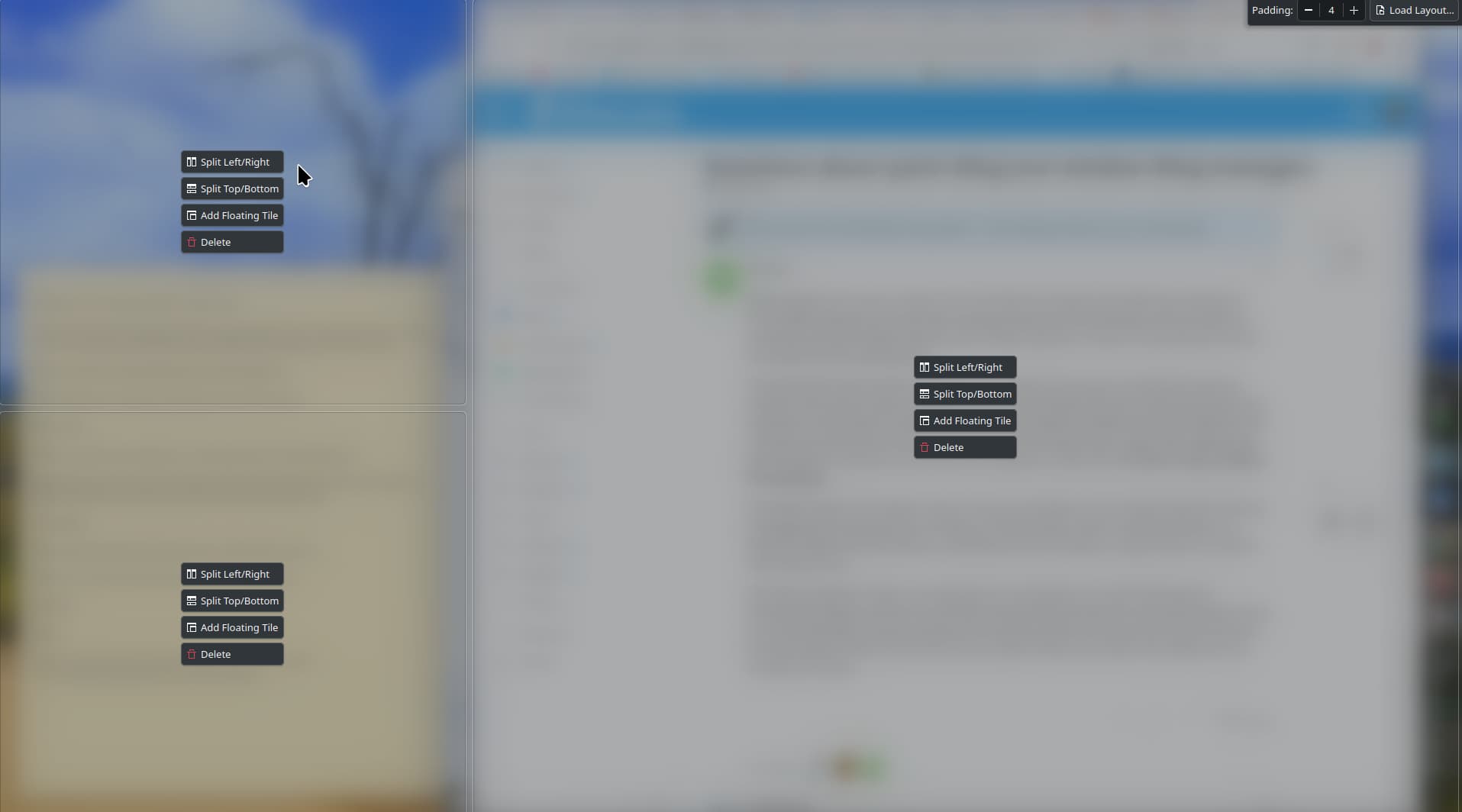
In the quick tile mode (shift-drag, etc) you set the layout with meta-t. There you will see a spacing option at the top-right, which you can set to 0 instead of the default.
As for regular drag-to edge on multimonitor, I don’t know, there are snap settings under Window Behavior in System Settings, but they don’t seem to affect anything for me.
I seem to use the shift-drag, which avoids any confusions kwin seems to get between monitors as it focuses on the nearest snap zone from the quick tile layout.
I see, my bad. However, that was an option I actually tried and I didn’t see any change at all.
They overlap by default around one or two pixels. But with tiny border it does not feel as bad as it does before to me. What I realized on last testing is, that this behavior has nothing to do with tiling, but with snapping. If I snap a window to another, it also overlaps that much. I think the intention behind was to reduce space by overlapping the borders. However, since they do not share the same border as in Dolphin split mode, they switch what border will be drawn over the other. And with default settings (none border), the focused window just get drawn too close to the non-focused windows contents, which feels not good. The shadow made it even worse, because it is drawn above the already too close content.
So, I think the real question is “how to adjust the negative snapping spacer?” (negative as -2px spacer instead of 2px).
About screenshot: Is this something in between tiling manager and ‘regular’ tiling or is this already the tiling manager, which it seems to me? Anyway, I guess I will explore it anyway at some point, so thanks for mention it.
Currently I have the feeling that here is a lot of space for improvements. I may create a design and a brainstorm discussion about in future, once I have more experience.
it is somewhere between. It is NOT a tiling window manager, but is more tiling on a little bit of steroids. The layout and margins are about the only settings, other than setting shortcuts.
And this is not new in Plasma 6 at all, I have it on my Plasma 5.27 as well as my Plasma 6 system, can’t recall exactly when it was new.
Shadow and border size settings will be dependent on the settings for the Window Decoration, Breeze has a few, some have very little.
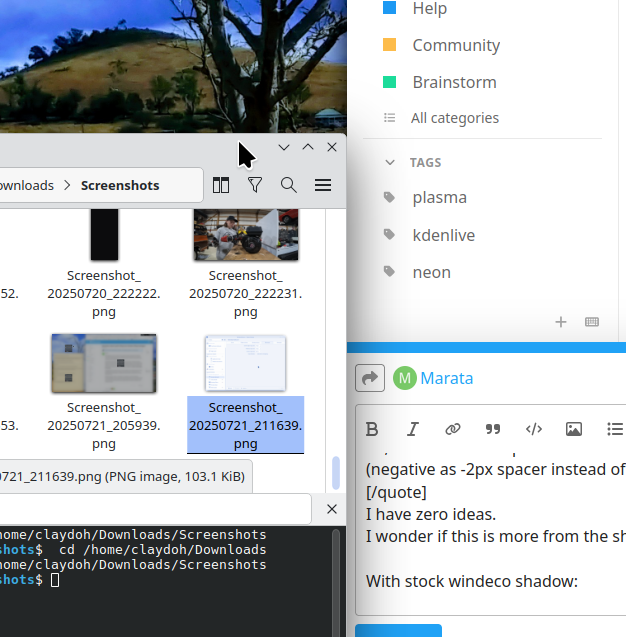
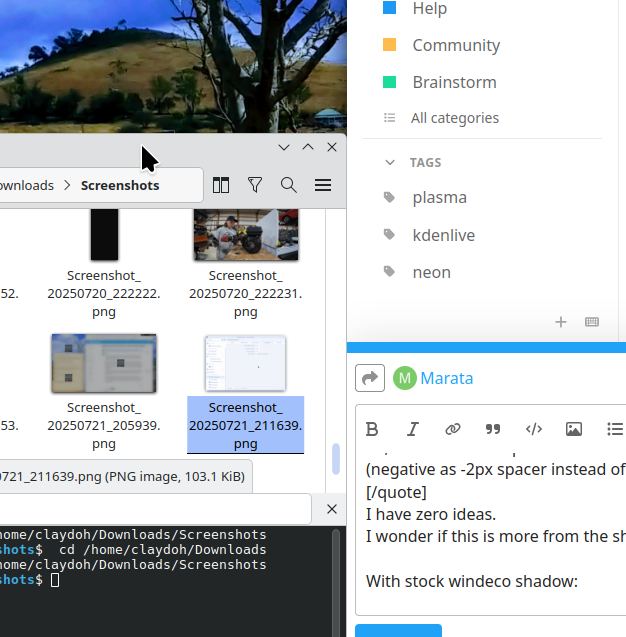
I have zero ideas.
I wonder if this is more from the shadow settings?
Nice, looking forward trying it out once everything is installed.
Your screenshots look different to what I saw on live Debian + KDE. Thanks for sharing those. Even with Shadows disabled I have an overlap on each snapped window - tiled or not tiled. I also looked at the rounded window corners, so I know it for sure. It’s probably the best thing to ignore this issue for now and once my system is switched, I will check if the issue persists or if it is magical gone. If it persist, I also will provide screenshots and otherwise I write a “solved” answer or something.
These were from Plasma 6.4.3, and default breeze theming for the colors and window decoration, so the most current. You have Plasma 5.27, assuming Debian 12 Stable. The next release will have 6.3.5 (reasonably OK, but really being stuck on 6.3…unfortunate, but that is just imo. Which is worth about 2 cents or less)
The settings and options should be the same for windeco and window management even though Breeze itself will have some differences, though the locations will be found i different locations (or ordering rather) in System Settings.
So 6.3.5 … sad to hear, because next two versions contain nice improvements of what I saw. But stability is more important, at least for the core systems. We will see what happen.
I’m finally on Linux for some days and took the time to customize my experience to my needs. While the “issue” is not gone, I managed to adjust everything in a way I don’t even care about it anymore. It feels all just right now. Moreover the program I needed it in first place is not affected at all (everything aligned).
And here I just have to say a huge thanks to the developers. It’s just great how I can adjust the tiling size with a single drag and drop, even the windows invisible hidden behind another window. This brings my workspace to the next level.
The only issue remains: is there a way to tell these program-windows to open with the tiling attribute? When I open it, all windows are exactly where I left them, but I have to use Super/Meta + Arrow to give those windows the attribute back. I know about the Window-Rule-Settings, but didn’t find anything helpful there, yet. I only want it for this specific program, not for anything else. It wouldn’t be a huge issue, if there is no option, but it is a little quality-of-life thing.