Running a script from KDE menu and seeing it run

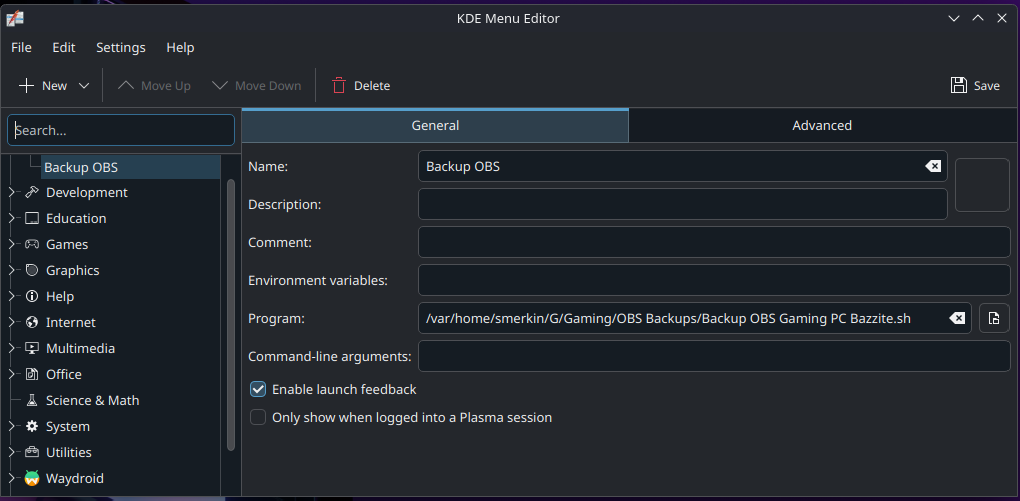
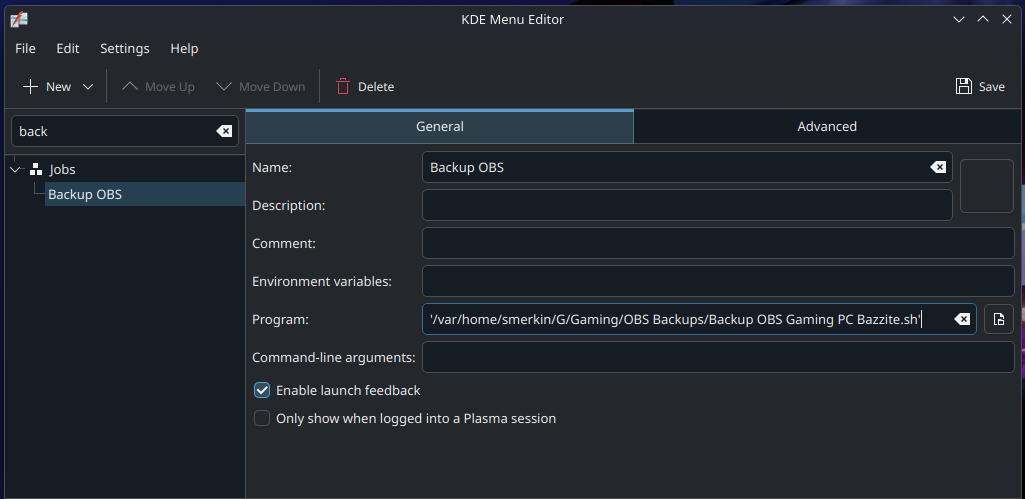
In KDE Menu Editor I can create a new menu item that runs a script

'/var/home/smerkin/G/Gaming/OBS Backups/Backup OBS Gaming PC Bazzite.sh'

This works fine, it creates the backup file. However I don’t get to see the progress of the script running so the only way I know it was successful is to go and find if the backup file was created.

Can I make the output of the script be shown as it runs? The last line of my script is:

read -p “Done, press any key”

(which would wait for me to press a key before continuing … if I had a screen showing the output).

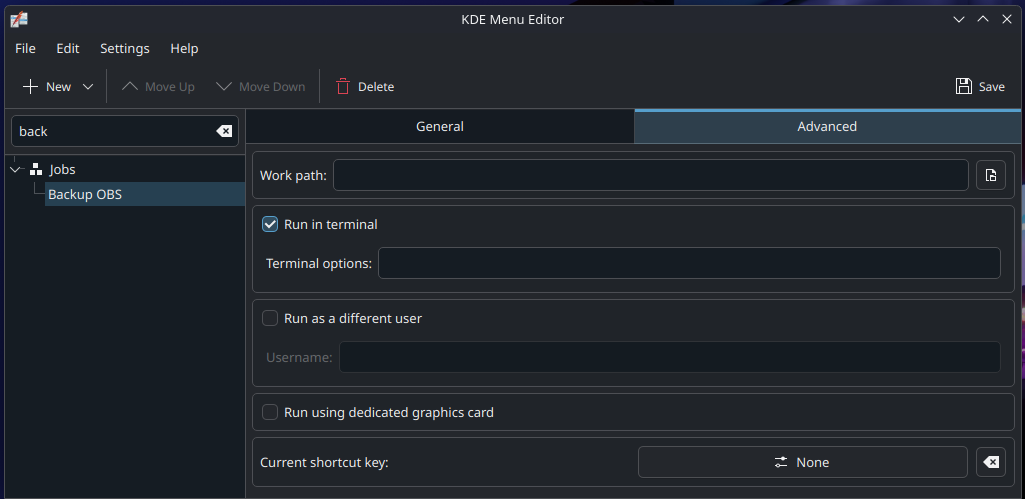
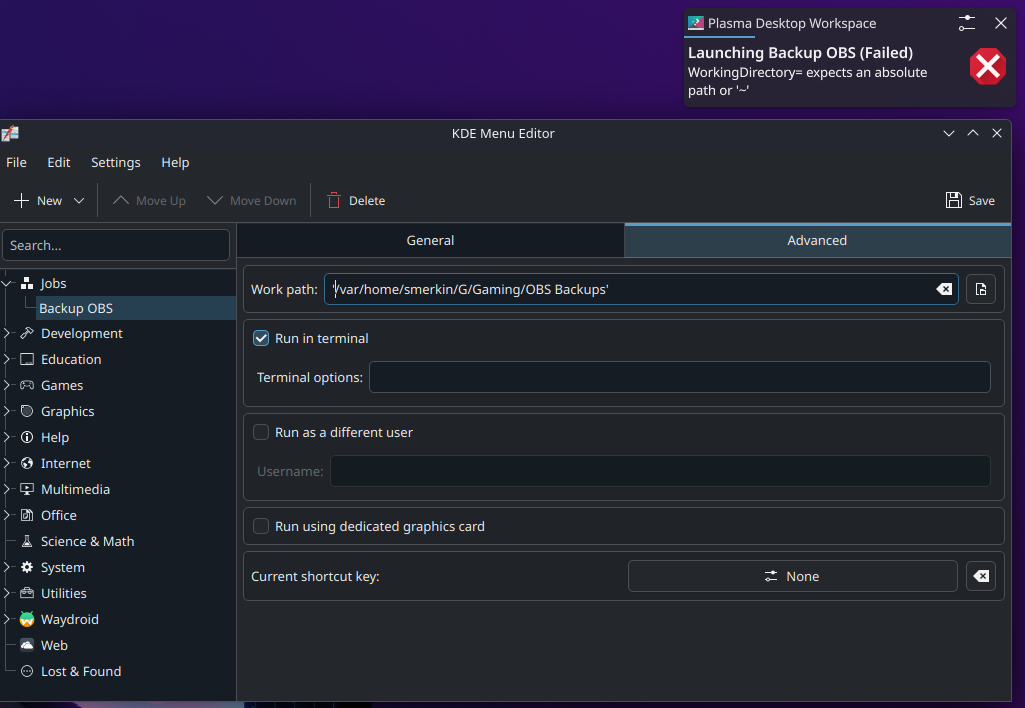
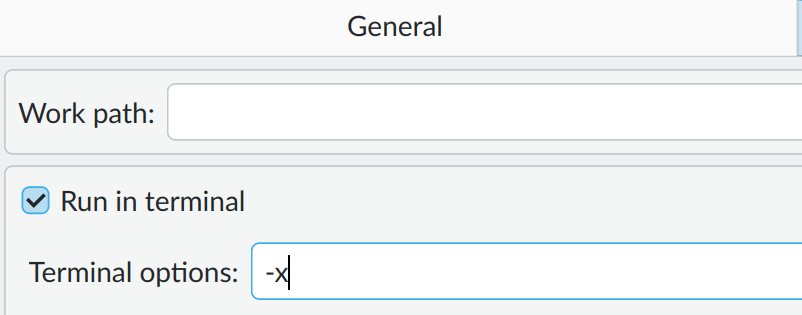
I tried the Advanced tab and checked Run in terminal

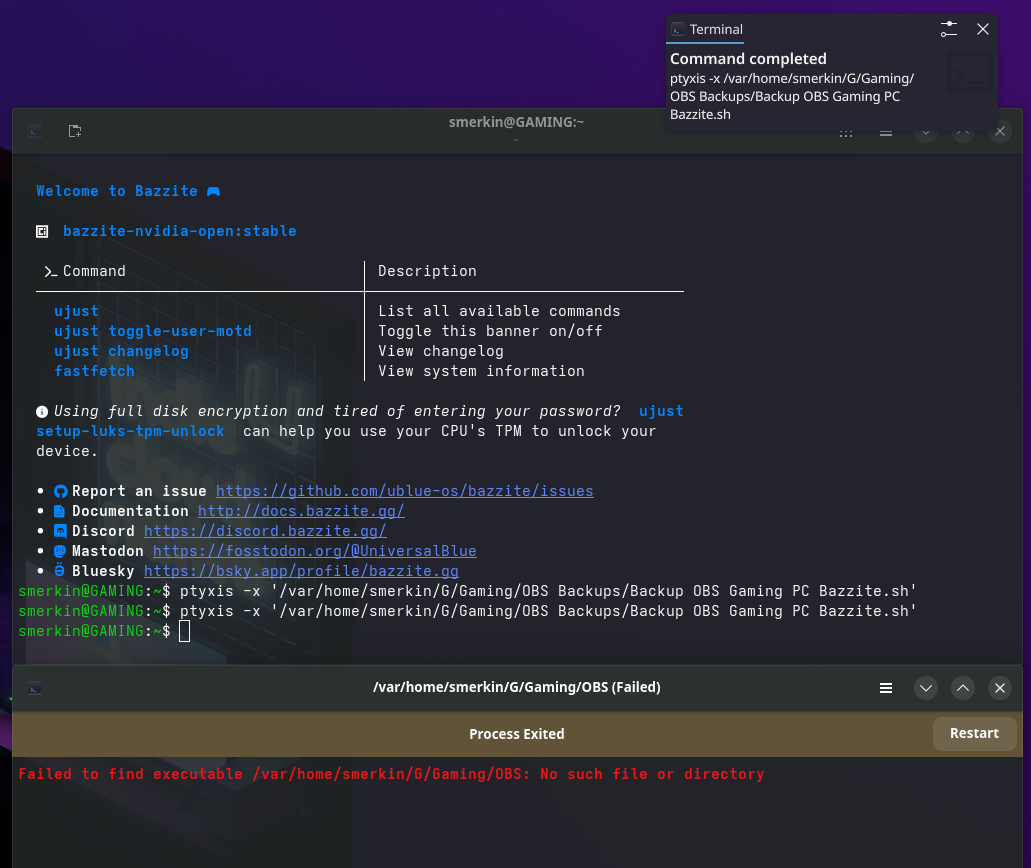
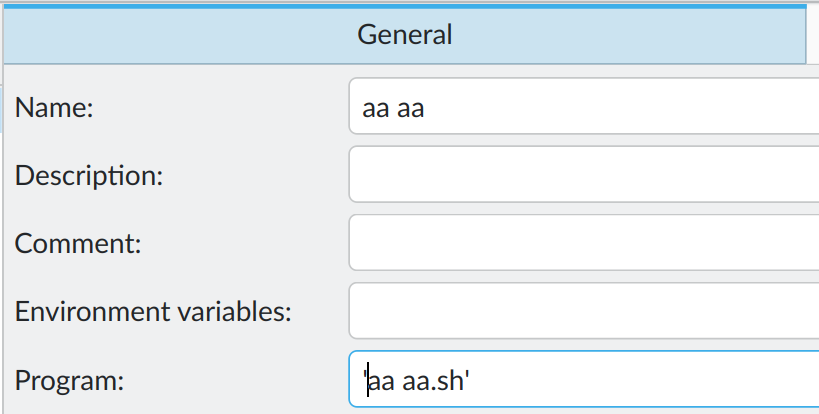
but then I get the following:

For some reason it’s not accepting the quoted progam name and failing at the first space.

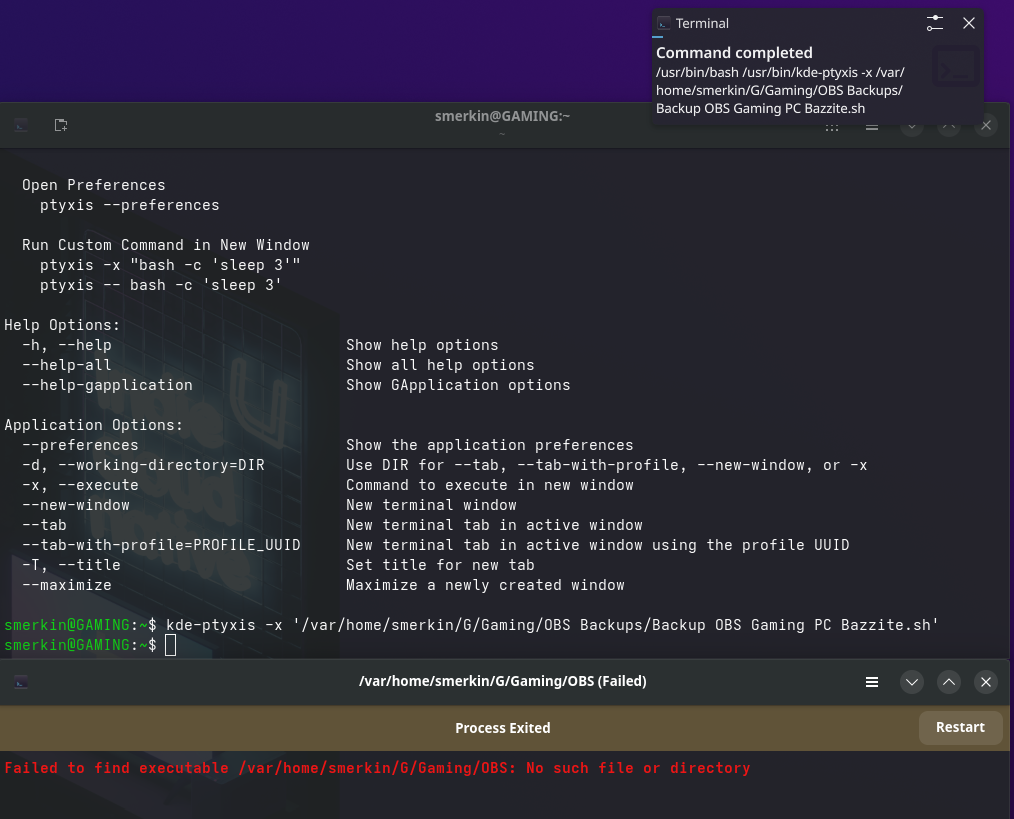
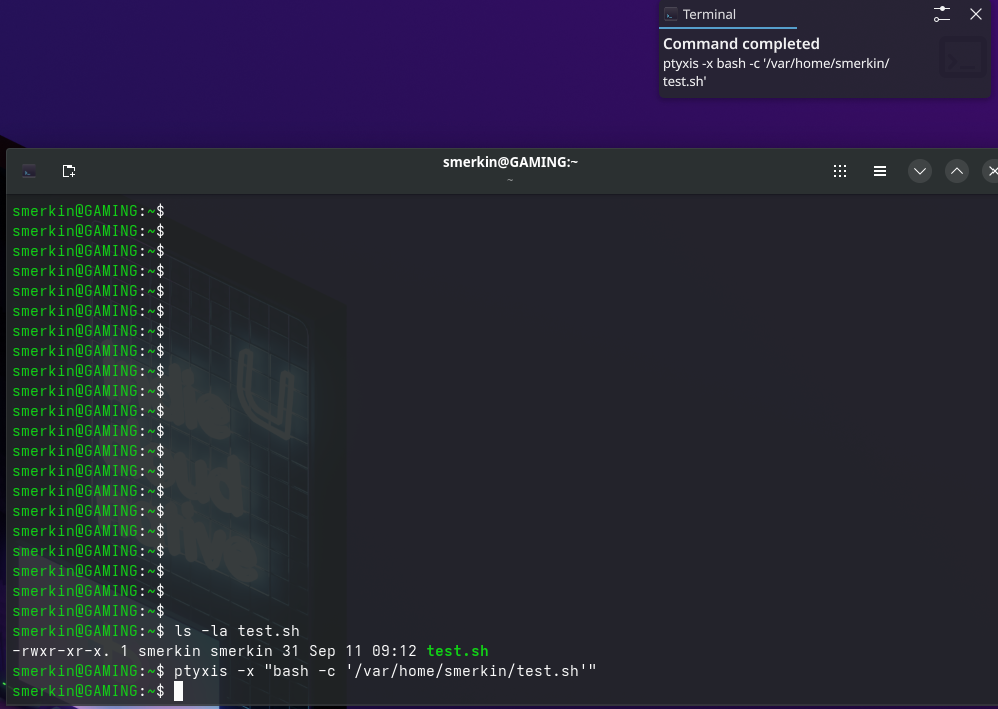
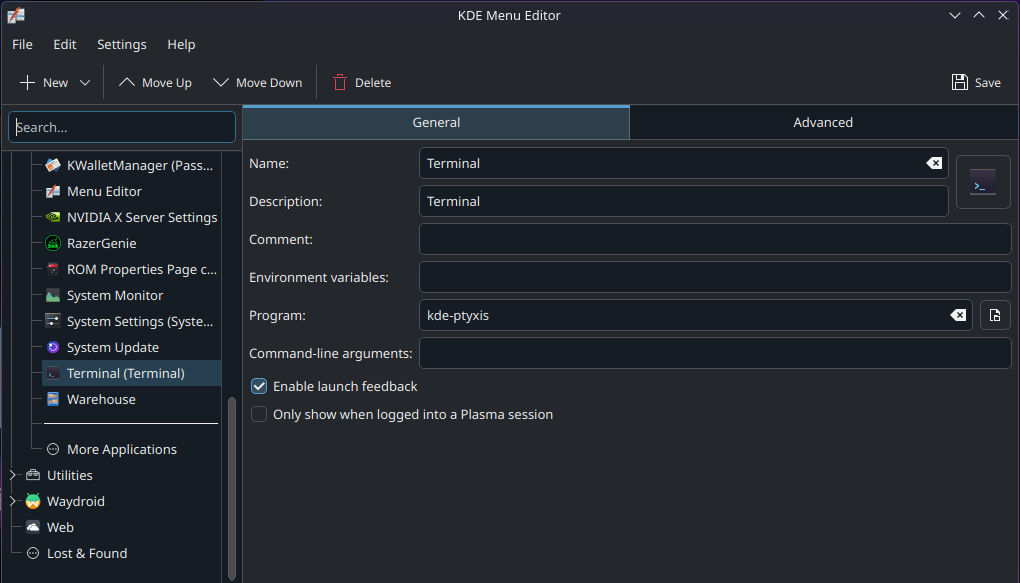
My terminal application seems to be kde-ptyxis so I’ve tried this at the command line using ptyxis:

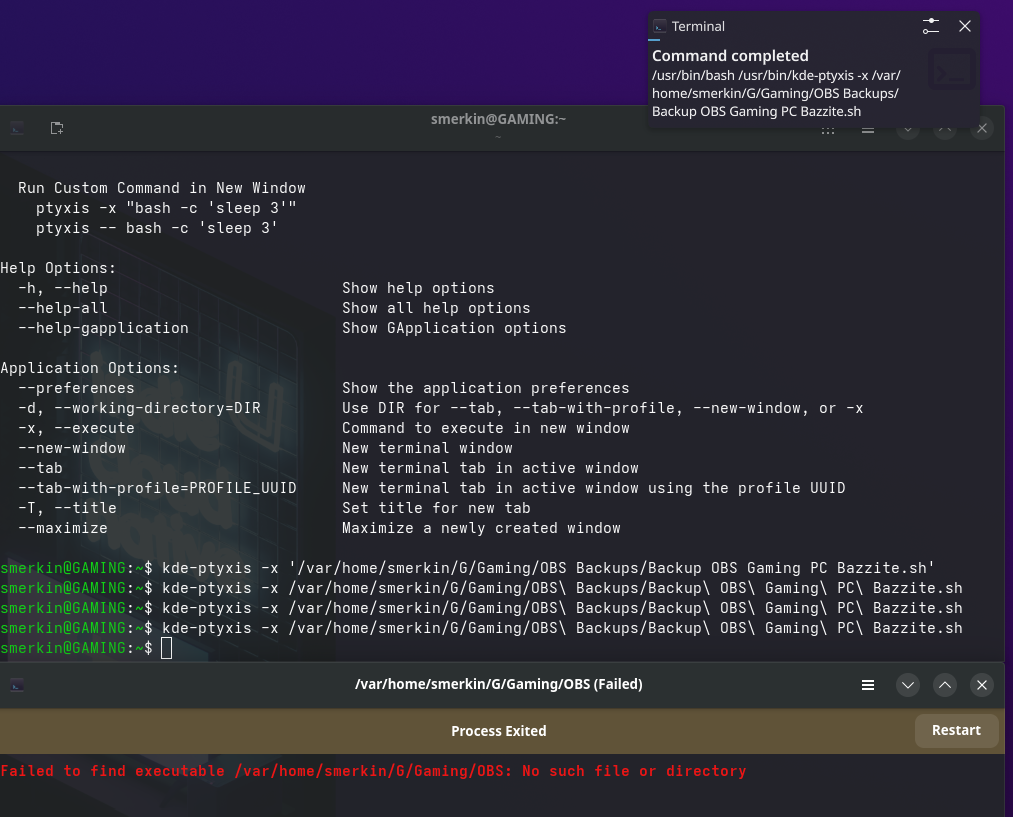
and also kde-ptyxis:

I’ve even tried escaping the spaces to no avail

I’m not sure if I’m going down the right path so I decided to come here and ask for help. Anyone know what I’m doing wrong?

I think “run in terminal” is the right approach if you want to see a console.
Can’t you just rename the script so that it has no spaces in its name?

If you only want to know that the script has finished you could use a tool like notify-send or kdialog to show a message

1 Like

I’m sure they can, but the fact that the path stops being quoted properly when using the “Run in terminal” option seems like it could be a bug in our code.

You tried to put in Work Path field the path to your script? ‘/var/home/smerkin/G/Gaming/OBS Backups/’ or searching clicking here:

imagen

Regards

Yes, if the folders and script have no spaces it runs fine with “run in terminal”.

While they are options, I just want to see the raw running progress of the script, instead of complicating it more.

Now I did notice something when I came back and edited the menu item for testing. On my previous screenshots, the script under “Program” was enclosed in single quotes. When I opened KDE Menu Editor to edit it, the single quotes are gone.

After my test with the “filename without space” I changed it back again using the “Open file dialog” button and it correctly puts it in with the single quotes. Then if I close KDE Menu Editor, open it again the Program field no longer has spaces. I thought this might have been a side-effect of having “Run in terminal” checked but this made no difference, when I re-open the editor the single quotes are gone. This is KDE Menu Editor 6.4.4.

Good suggestion. Using the “Open file dialog” button to select the folder location it puts it in the “Work path” field without the single quotes.

After saving it and running it I get the same issue.

I tried enclosing the work path in single quotes but it then throws the error "WorkingDirectory= expects an absolute path or ‘~’”.

After some more testing I had a look at the “Backup OBS.desktop” file and the Exec= line does have the single quotes. I changed these directly in the file to double quotes and it still didn’t work.

[Desktop Entry]
Comment=
Exec=‘/var/home/smerkin/G/Gaming/OBS Backups/Backup OBS Gaming PC Bazzite.sh’
Name=Backup OBS
NoDisplay=false
Path=/var/home/smerkin/G/Gaming/OBS Backups
PrefersNonDefaultGPU=false
StartupNotify=true
Terminal=true
TerminalOptions=
Type=Application
X-KDE-SubstituteUID=false
X-KDE-Username=

My gut feeling is that this is an issue with ptyxis, so I created a test.sh file to perform a couple of basic tests.

#!/bin/bash
ls>test_output.txt

So the script runs fine:

And it creates the file:

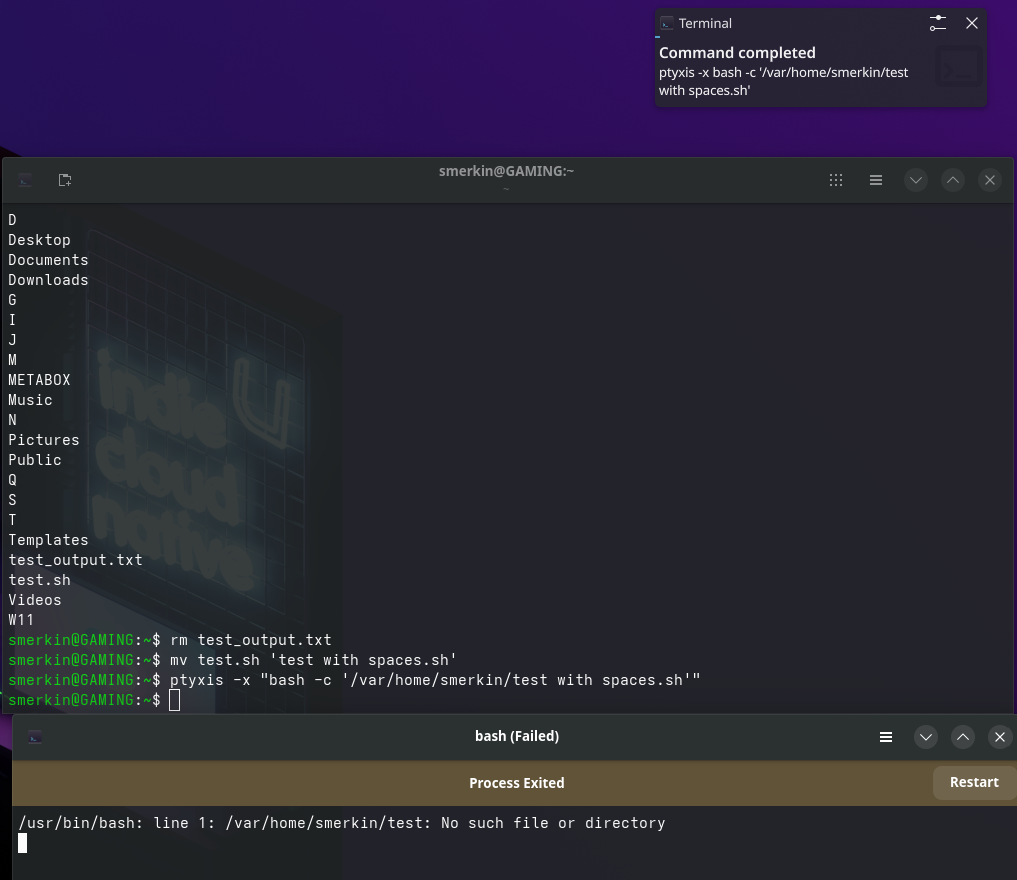
Now I rename the file to “test with spaces.sh” and re-run the test. The same issue is occurring here where it’s stopping at the first space:

So I suspect the issue is not with the KDE Menu Editor/Launcher but something to do with ptyxis or how the terminal environment is passing arguments. I’m happy to report this as a bug however I’m not exactly sure where it should be classified under.

Let me know your thoughts and if there is any other testing I could do.
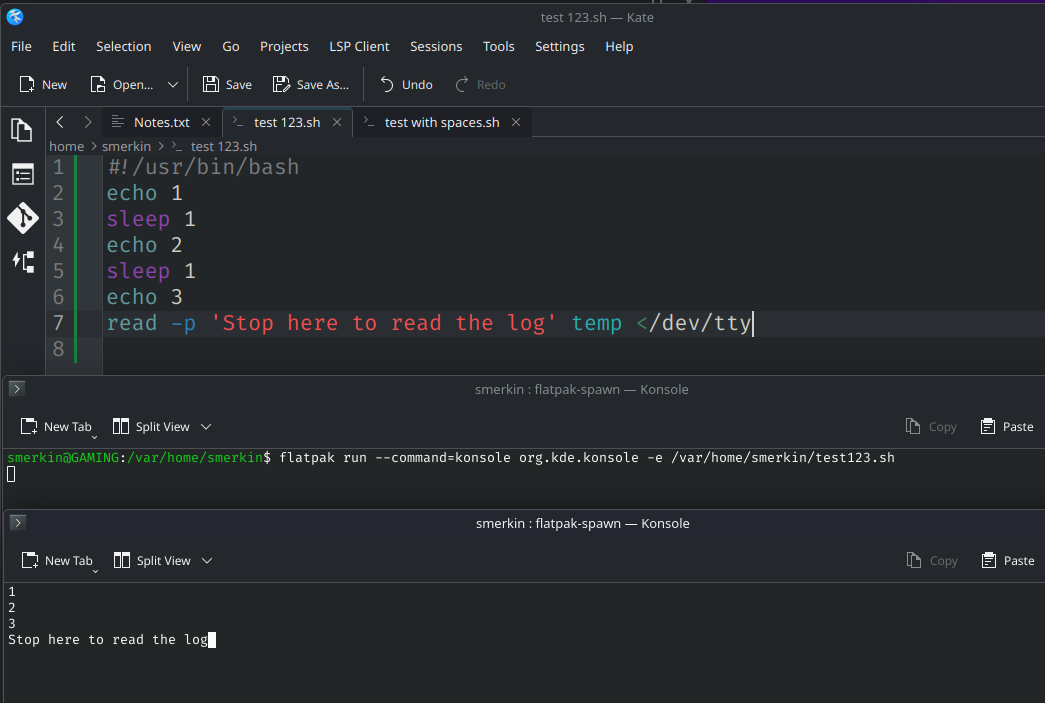
My script works and holds the terminal open:

#!/usr/bin/bash
echo 1
sleep 1
echo 2
sleep 1
echo 3
read -p 'Stop here to read the log' temp </dev/tty

I don’t see the name of your script and showing it being executed, what command line arguments were used and so on.

My issue arises when the name of the script, or the folder it resides in has spaces. If I don’t use spaces the script runs fine.

With a space:

Thanks for that, I’ve duplicated your test and I still get the issue.

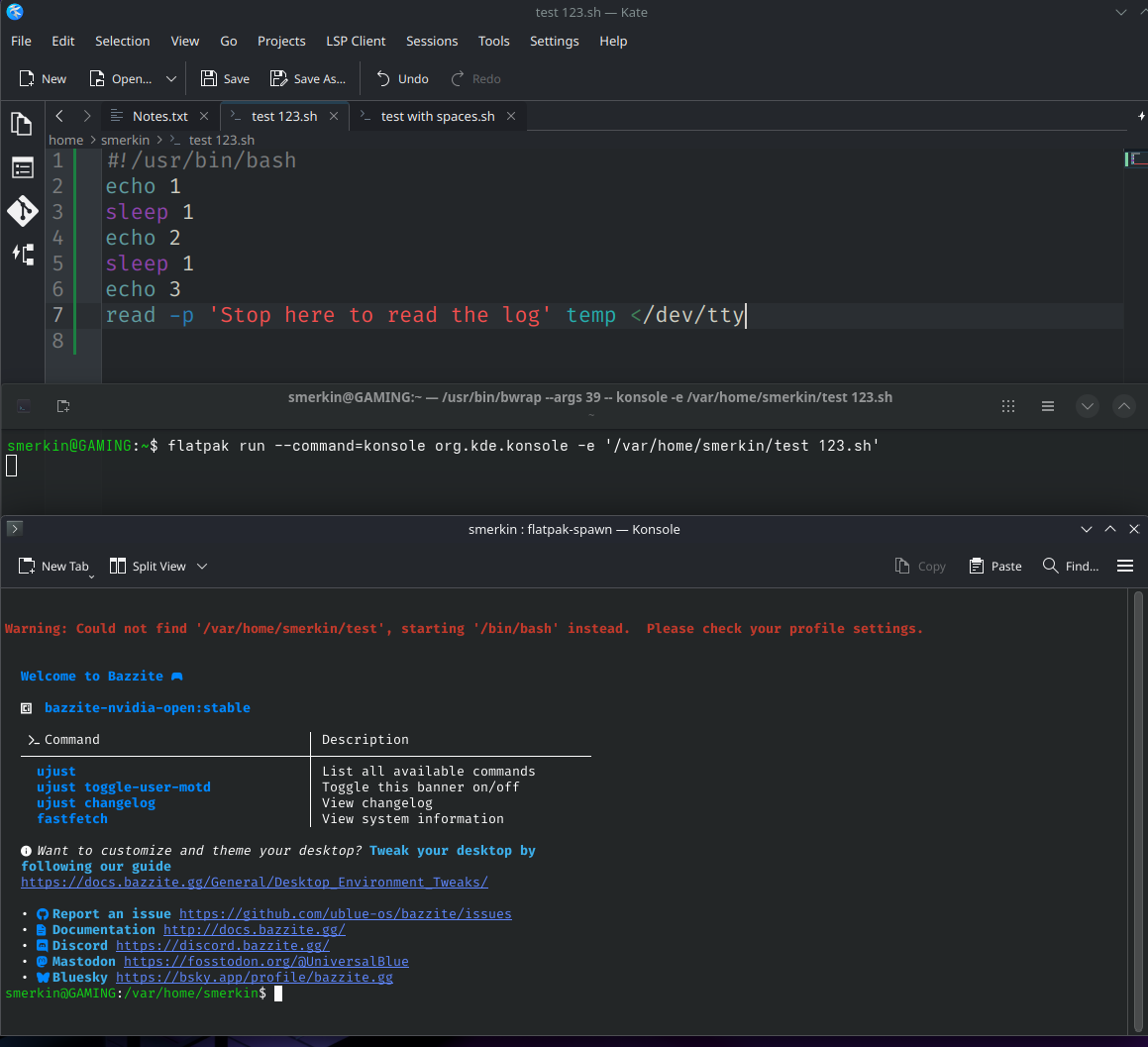
I did notice in your screenshot you are using Konsole and my system has ptyxis as the default terminal app. I installed the Konsole flatpack and executed your script without a space in the name and it worked:

If I try again but with a space in the filename the same issue occurs:

Perhaps this is because I’m launching the konsole flatpak from my ptyxis terminal, so I open the Konsole terminal from the KDE Menu and try again:

Same issue.

Then likely an issue with Flatpak Konsole. While I am all for Flatpak apps (it is all I use), there are some things that shouldn’t be a Flatpak, like the terminal emulator. I use Kinoite which keeps system apps like Dolphin and Konsole on the base image.

Wouldn’t it be an issue with ptyxis as this is the default terminal app installed on Bazzite and I assume this is the terminal app used to execute the scripts.

It looks like this isn’t a Flatpak.

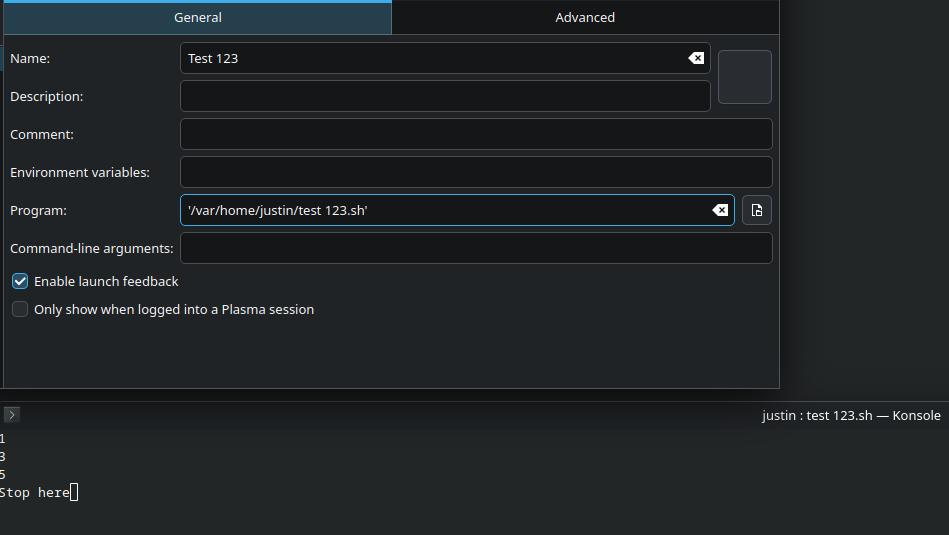
I finally came up with a work-around solution, creating a KDE Menu item that runs the program ptyxis and uses the Command-line arguments:

-x ‘“/var/home/smerkin/test 123.sh”’

I also did not need to have “Run in terminal” checked on the Advanced tab.

Thanks everyone for the help, I’m going to pass this onto the Bazzite team as all I have here is a work-around and it would be good to see the root cause of the issue fixed.

2 Likes

It looks like ptyxis does not directly execute command without some flags.

$ ptyxis -h

...

  Run Custom Command in New Window
    ptyxis -x "bash -c 'sleep 3'"
    ptyxis -- bash -c 'sleep 3'
-x "COMMAND", --execute "COMMAND": Execute a command in a new,
standalone window.
Example: ptyxis -x "htop"


-- PROGRAM [ARGUMENTS...]: Execute PROGRAM with ARGUMENTS in a new,
standalone window.
Example: ptyxis -- htop -u myuser

It can be various terminal to terminal. And there is ‘Terminal Options’ in menu editor.

In my case - kitty terminal - it supports kitty command form but immediately quit after script returned. So I should put —hold flag on ‘Terminal Options’.

After all, no problem at all. :slightly_smiling_face:

1 Like