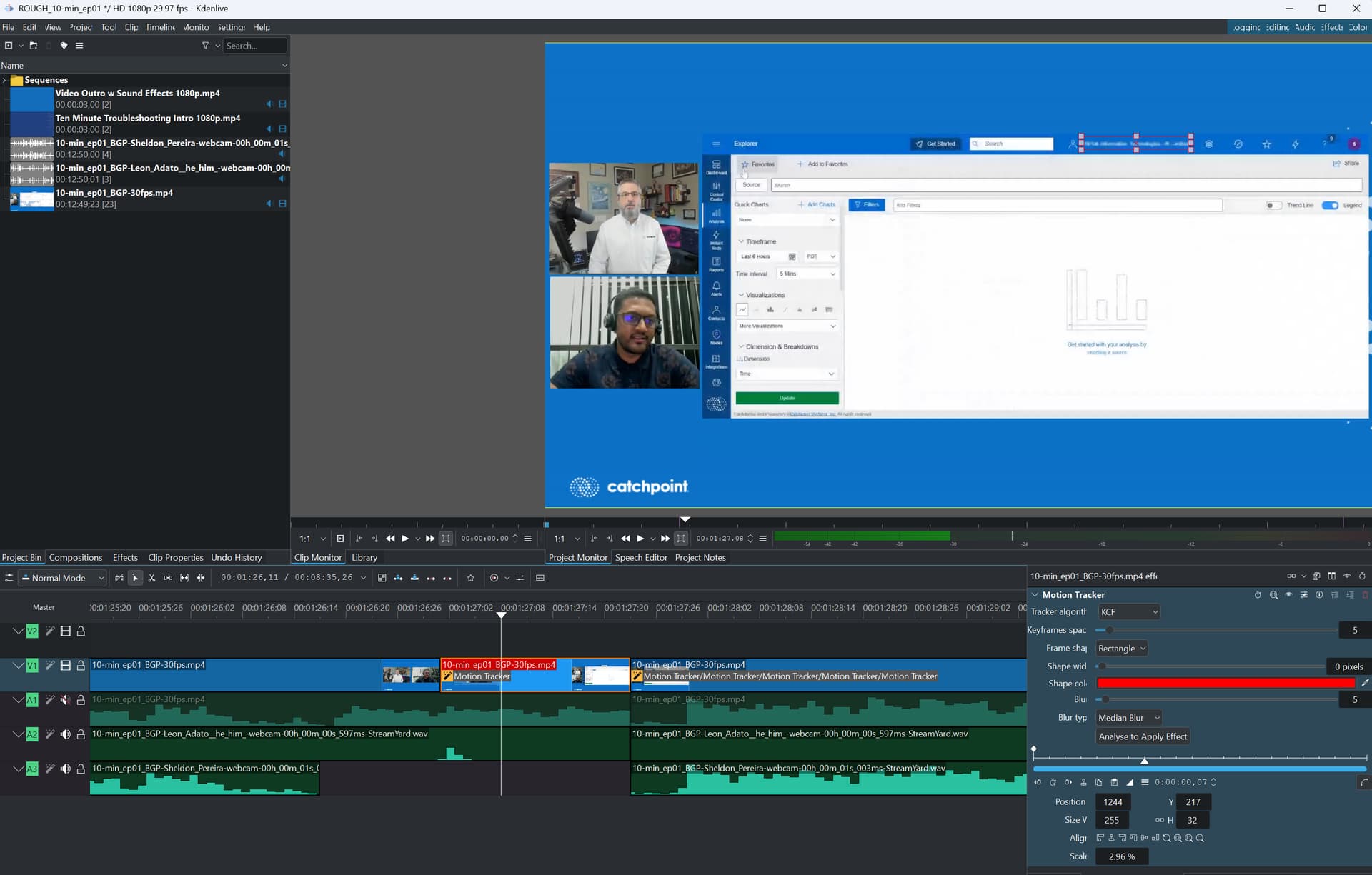
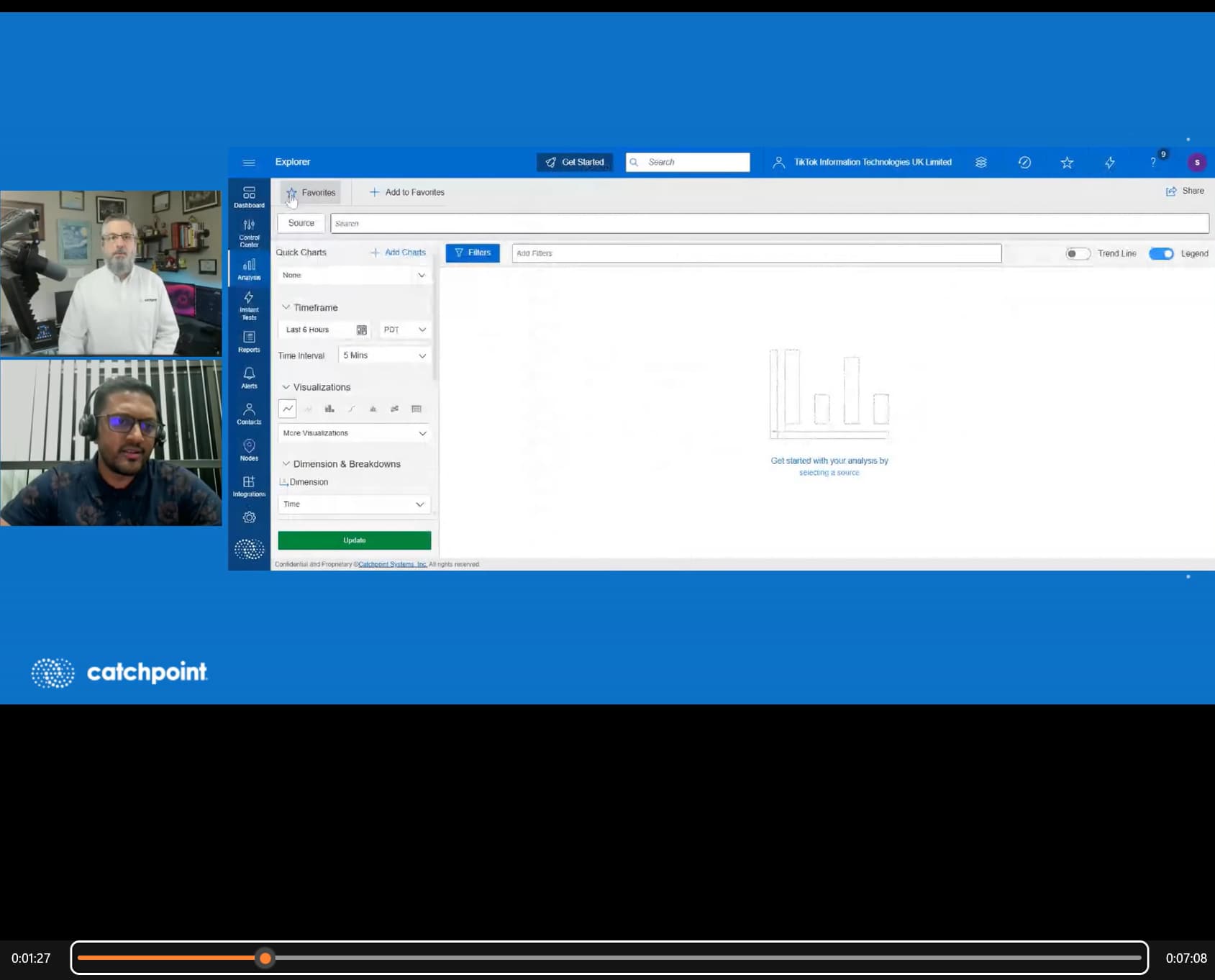
(system details at the end of this post)
I’m using the built-in blur feature (from Alpha, Mask, and Keying → Motion Tracker) to blur specific areas of the video. I’m not even using keyframes to move the blurred area. It shows as blurred in KDenLive when I’m previewing it, but the blurring is inconsistently applying in the rendered file.
What I’m seeing is that some clips (segments of the video) will blur fine, but other segments will unblur in the render.
I’m seeing it on 2 different systems.
SYSTEM INFO:
System 1:
Dell Latitude 7650, Intel Ultra 7 12 core CPU, 32Gb RAM.
Windows 11 enterprise.
KDenLive 25.04.2 installed via .exe
System 2:
Home-built PC. MS-7C02 motherboard with AMD Ryzen 7 3000 16 core CPU and 64Gb RAM
Ubuntu Linux 25.04
KDenLive 25.04.3 via AppImage.
BTW seems that Motion (like the word “motion”) requires at least 2 key frames to do some type of motion. (from point 1 to 2… and on your example there is just the starting point)
As a follow up as I did have the same problem,meaning, I used “Motion Tracker”, put the box and apply a blur, which was working in editing, but not once rendered.
In my test (haven’t tried on my project yet!), you need to add 1 keyframe at the end of your sequence (stop watch + ).
Once rendered, the blur should follow (and I suppose as a side effect, the rendering seem longuer).