Hello.
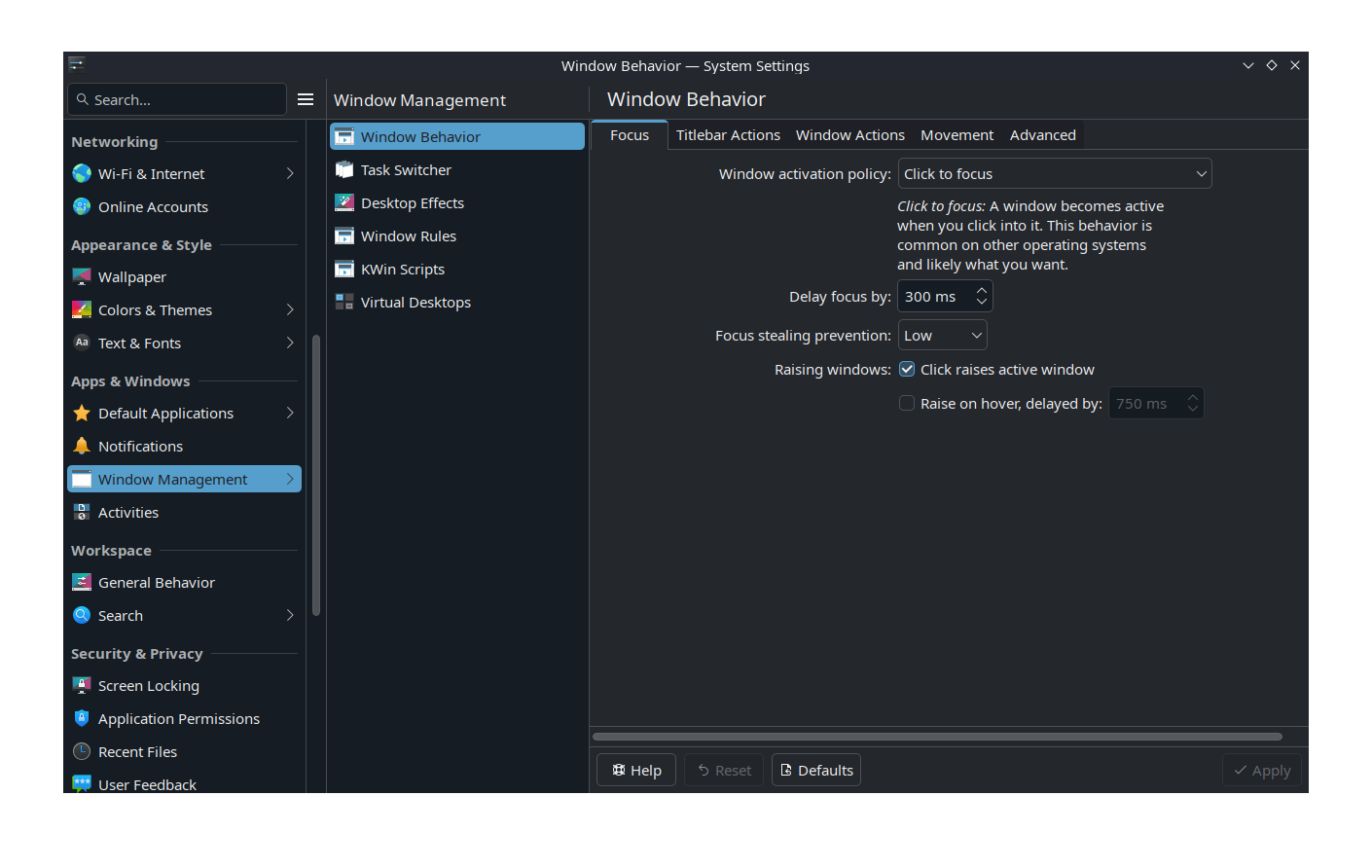
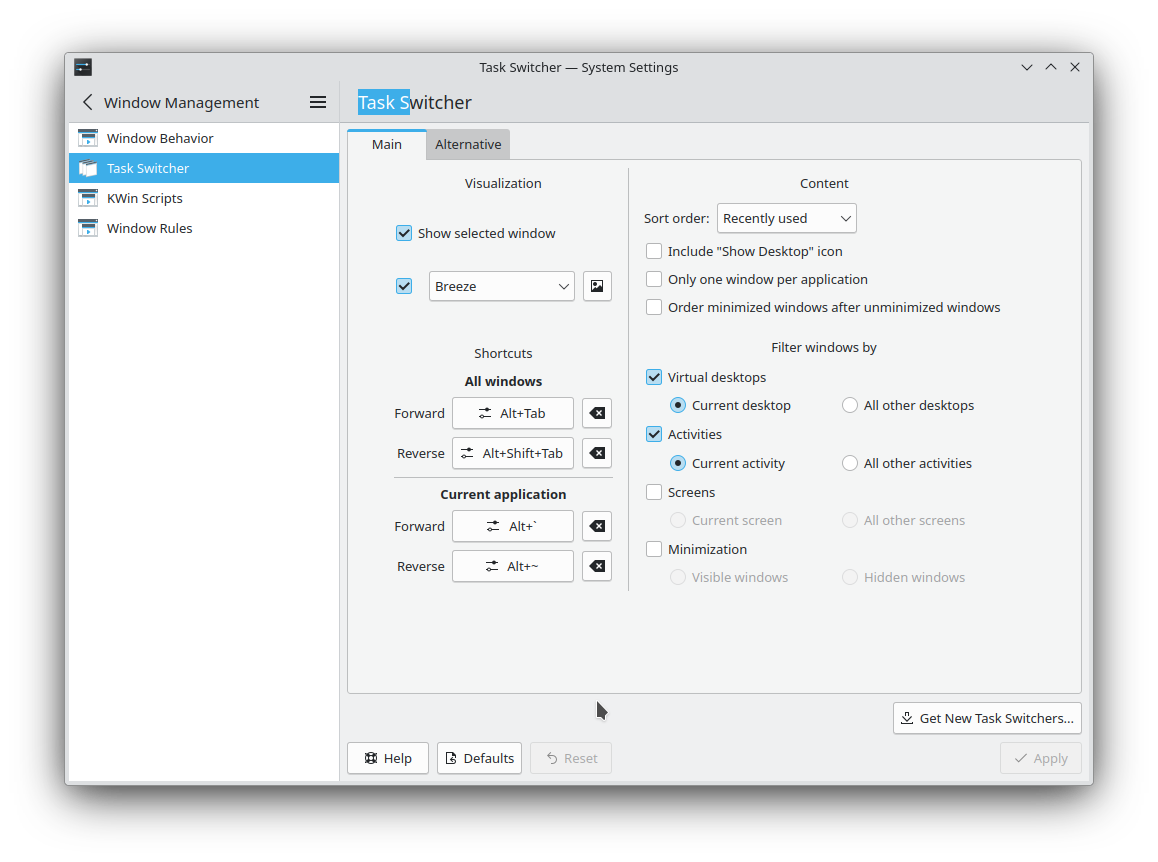
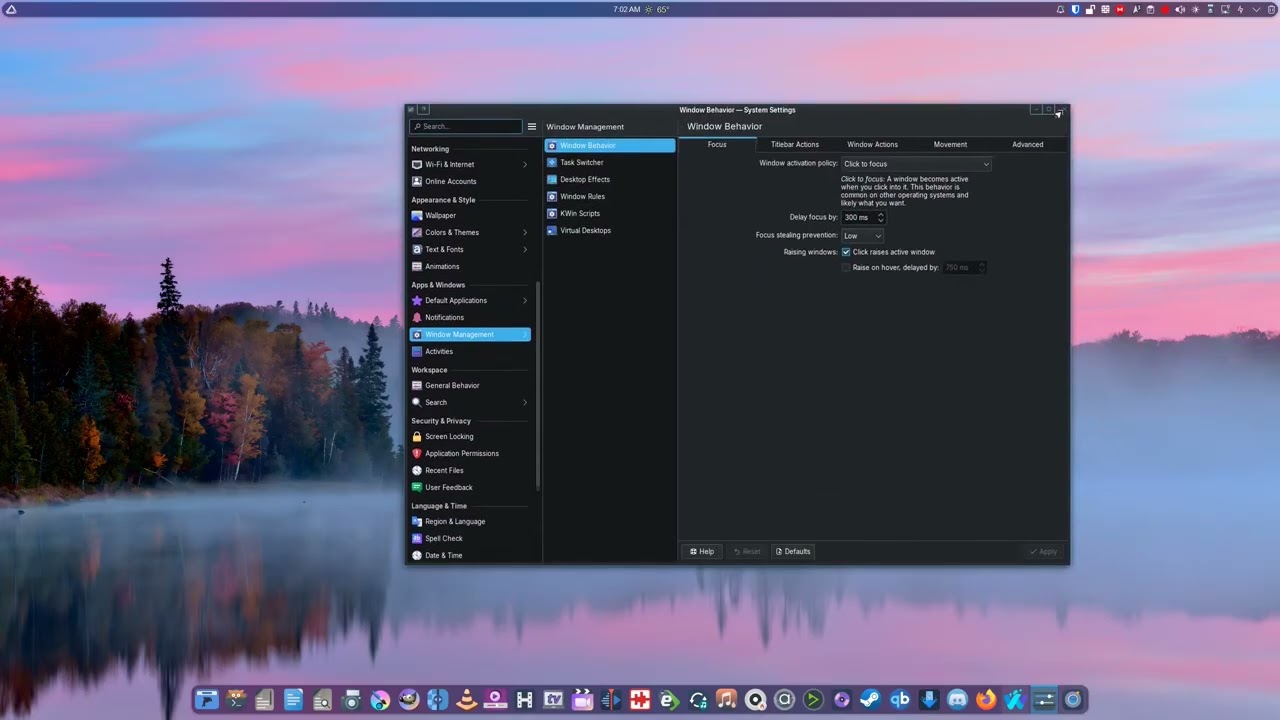
I’ve been using KDE for a while now on my steam deck and the system settings window would always open like collapsed (not sure how to explain this better) now thanks to an update not sure when its always fully expanded and there is no way to collapse the windows again.
In the screenshot you have everything in like one page if that makes sense, before I’d have to click window behavior for it to show all those settings and it would hide the main menu.
How do I get this back? Since having a small screen real estate on my steam deck now I have to scroll a bunch to see the stuff on the screen, especially on the network settings page.
Hi thanks for the replys.
This does somewhat solve my issue, rather annoying though that you can’t opt out or change this? I want to maximize the window but still use single column mode, I assume this is not possible?
Ok, that’s new - I still don’t have this on 6.3.6; however I generally run KCM windows directly (at least most of the ones I tend to use, I created launchers for them).
It really makes sense for these complex interfaces to change as the display size and shape changes and it’s very wasteful for it to be maximised and still have the same layout.
For windows that need more space - like the Font Manager, you can launch it as a separate application:
kcmshell6 kcm_fontinst
It shows as an application and has an icon, and you can create the launcher by creating a folder /home/ben/.local/share/applications/Settings and then creating a file in there called Font Manager.desktop