As I’m settling into KDE I have a few more questions. This time about panels…
Can you have multiple panels on the same screen edge?
Can the panel layout be edited, say for multiple rows and columns?
Is there a guide to creating/theming widgets?
If you HAVE kde (actually, the desktop is Plasma), then you can CREATE panels and LOOK at the settings…
So yes, you can edit settings and do lots of stuff just looking at the desktop - without even going to look at abscure settings files.
However, if you’re running KDE Plasma desktop, you should certainly have ~/.config/plasma-org.plasma.desktop-appletsrc - if you don’t, that might be because it’s totally freshly installed with no settings.
no, one panel per edge, otherwise they stack and you probably don’t want that.
for plasma 6 there is a 3rd party panel customizer (panel colorizer, i think) which allows you to visually break up a single panel so that it appears to be separate panels (really just the one tho).
have no idea about guides for theming widgets
~/.config/plasma-org.kde.plasma.desktop-appletsrc
is my file … you are missing part of the file name.
FFS! I must have miss copy/pasta’d the file name last night. I certainly do have that file.
(IFTFY - YW)
You mean look at the settings using the GUI? Don’t you think that’d be faster than posting here?
Does stack mean “next to each other” (which i do want) or “behind and in front of each other”? If you see what I’m asking.
I tried positioning two panels at the bottom of one screen last night but failed. Given that I also failed to copy/paste properly, maybe I was just having a bad night.
Now that I’ve found that config file I have some more stuff to look into, so thanks.
i mean they stack away from the screen edge so you can’t have two panels inline with each other along the same screen edge… it’s not a desirable or even recommended arrangement as it may produce unexpected results.
This only if you overlap them, I have a panel top left and another centre… it’s perfectly doable.
For example, let me put a clock panel in the middle to demonstrate (possible to make this a ‘dodge’ panel, with the other panel being ‘auto-hide’ to be always hidden):
Widgets do not need to be on a panel, which is obvious, but makes me think the point of a panel is to signal new screen dimensions for maximised windows if required.
And widgets are interpreted at runtime…
After a bit of rummaging around, and some googling, I found org.kde.plasma.taskmanager lurking in /usr/share/plasma/plasmoids
It seems like I can copy it to ~/.local/share/plasma/plasmoids/ and modify it as I see fit.
There is an example here of co-opting functionality from another widget.
All this gives me a fair bit to play about with, so thanks for giving me the encouragement to look again at appletcsr @skyfishgoo
Scratch that - the widget I’m after is called “grouping plasmoid”
It is in kdeplasma-addons which appears to be somehow installed by default on u/kubuntu. I can’t find that package using apt, even though it’s listed here, but the widget is already installed.
Generally, STACK would mean ON TOP… as you can with Windows.
However, Stack could also imply that two panels might stack next to each other (i.e. a second panel be showing next to the first, instead of next to the screen edge - but there is no configurable gap to do that).
Again, you can see this if you create two panels on the same edge, so I’m not sure why you’re posting here. If they occupy the same space, one will cover the other. However, if you put one left/centre/right, you can fit 3 on one edge of the screen - you could have 9 panels.
You didn’t specify how you tried positioning two panels and failed…
Panel Settings:
Position can be set for 4 edges
Alignment can be Left/Right/Centre
Width can be Fit/Custom instead of ‘fill width’
Visibility can be Dodge/Auto-hide/Always
what failed?
Not ALL widgets need to be on a panel… some definitely do, it depends on the widget.
Binary Clock, for example, works well as a Desktop Widget… but Global Menu doesn’t work that way.
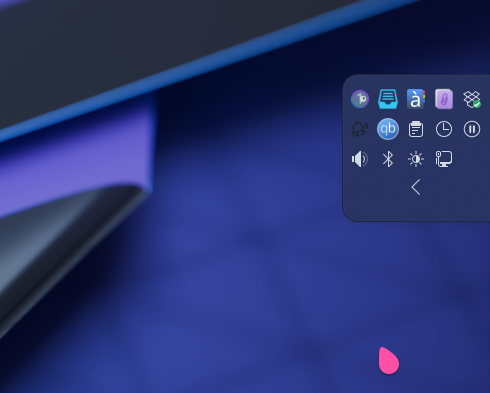
You can make the panel wider and have more rows with some items:
Because, dude, I’m new, and there’s a lot to learn. Maybe somebody will see one of my posts and say “Oh yeah… I remember that niggle; here’s a tip…”
Also, I’ll be able to refer back here when I’ve forgotten this in a couple of months. So it maybe helps me, and maybe someone else in the future.
I was hoping to get two full length docks at the bottom of the screen. But the way things work is that one obscures the other when you do that. As I explain that, it turns out you can assign each one a hotkey and toggle between them… Hmmm…
Anyway, if you take a look at the vid I linked above you’ll see an old solution from kde 3 or 4. I want some of those in my dock. Not going to happen.
Ok, that’s new - but there are 4 edges to the screen with 3 locations for each edge. You could have an autohide panel called up with Meta_X with your least used items up the left edge, most used along the bottom set to dodge, a short one for the tray set to dodge or stay visible…
There’s way more panel space than I could imagine using up.
If you use the “Screen Edges” in your setting to bring up a particular option, keep that in mind when placing your panels. It’s very annoying to try and unhide one of your panels only to have your screen edge option pop up. Just something to keep in mind
Haha yes, but also remember you can use a shortcut to do the same thing - so Meta-X can bring up your bottom panel even when you have a window covering it.
Also, if you remember in your Tray (I have Plex, Firefox, Dolphin, and Ghostwriter) without even seeing them, I can remember Meta3 will pull up the Dolphin entry there and Meta2 will minimise or pull up Firefox without looking, or aiming…
This was the one Latte function I was happy to see arrive - at that time I had separate Tray and Task manager bars - but now I just let the tray get hidden too.


 and Meta2 will minimise or pull up Firefox without looking, or aiming…