Since Google is always changing how you configure things, I figured I’d post current instructions for creating your own Google Cloud OAuth client and a custom google.provider that uses it.
Background
Since KDE is on Google’s shitlist, the keys in Plasma’s built-in google.provider don’t grant you access to Google Drive. To work around this, you can create your own OAuth Client in Google Cloud console and a custom version of google.provider that uses it.
Caveats
It seems that Plasma doesn’t handle token refresh correctly, so this will stop working after a week or so. When that happens, just remove the account from Online Accounts and re-add it. As long as you give it the same name it had before, any existing gdrive: paths should continue to work.
I don’t know whether access to other Google APIs work with this setup. I haven’t tested sharing videos to YouTube, and as far as I can tell, Plasma doesn’t do anything with the contacts, calendars, and tasks APIs, despite asking for access to them. (Akonadi seems to do its own thing.)
Instructions
Tested on 2025-05-23 with a normal Google account.
Open the “object picker” (at the top, next to the Google Cloud logo) and click “New Project” in the upper right of the dialog box that appears.
Name your project whatever you like. I used kio-gdrive. The default location (“No organization”) should be fine.
If this is your first project, GCloud console should switch you to it immediately. If you already had another project selected, you’ll have to switch manually by opening the object picker again and clicking on your new project.
Enable APIs
Once you’re “working in” your new project, use the search box at the top of the screen to search for “API Library”. You’re going to turn on a few APIs that KDE wants to use. I’m just going to list the API names. The easiest way to find them is probably with the search box — no not that search box — the one that says “Search for APIs & Services”. For each one, click on it and then click “Enable”.
Contacts API
Google Calendar API
Google Drive API
Google Tasks API
YouTube Data API v3
Each time you enable an API, it’ll take you out of the API Library, so you’ll have to click back into it by selecting “Library” from the sidebar. Rinse and repeat!
Set up Auth Platform
Once you’ve got all the relevant APIs enabled, use the search box to search for “Google Auth Platform”. You should see the message “Google Auth Platform not configured yet” — click the “Get started” button below that message.
Now we’re going to pretend that we’re deploying an “App” that will be “Published”, have an “Audience”, require “Support” for “Users”, and other such foolishness. You can pretty much put in whatever you like here. Here’s what I did:
App name: KDE Online Accounts
User support email: (the email address that google has on file for me)
Audience: External
Contact Information: (just that same email again)
Finish: check the “I agree to…” checkbox
Click “Create”. This takes you back to the “Google Auth Platform” overview.
Select “Audience” from the sidebar. Under “Test users”, click “Add users” and add the login emails of any Google accounts you want to log into from Plasma.
Select “Clients” from the sidebar. At the top, click “Create client”. Select “Desktop app”
for the application type and give it a name. I used “KDE Online Accounts” again, but you can pick anything you like. Click “Create”.
In the “OAuth client created” dialog, take note of your Client ID and Client secret values. You’ll need to put these in your custom google.provider file.
Select “Data Access” from the sidebar. Click “Add or remove scopes”. In the dialog/sidebar thingy, scroll down to “Manually add scopes”, paste in the following lines, and click “Add to table”:
Copy /usr/share/accounts/providers/kde/google.provider to ~/.local/share/accounts/providers/google.provider. Create directories as needed. Open your copy for editing.
Add the Google Drive API’s scope — https://www.googleapis.com/auth/drive — to the list in the <setting type="as" name="Scope"> element. Make sure you quote the URL and put a comma after it. (This is a JSON list, I guess.)
Change value of the <setting name="ClientId"> element to the OAuth 2.0 Client ID you saved earlier.
Change the value of the <setting name="ClientSecret"> element to the OAuth 2.0 Client secret you saved earlier.
If you like, change the value of the <description> element to mention “files” or whatever. (This also helps you tell if Plasma is using your new provider.)
If you have Plasma’s System Settings open, close and reopen it. Then add a Google Account to Online Accounts in the normal way.
Anyway…
I hope folks find this helpful. Let me know if you run into issues or if Google changes where all the settings are yet again!
It’s affordable, it’s worked faultlessly for me for about 8 years now, and it’s actually better than Google’s own Windows client with the exception of the fact that Insync fully supports Linux.
Thanks, works like a charm. Doing all these steps if you are not used to the Google cloud is a pita, though. Forgot to add the audience, ran into 403 access denied, had to fix. On second try, everything is OK now.
Still curious why Google or KDE named the root folder of my gdrive ‘google3’.
Any idea how to programmatically refresh the token? Manually removing and re-adding the account isn’t too bad, but I would like something like a cron job running for either doing this or refreshing the token by other means.
I have three InSync licenses around actually, but I never used them (got them when they had specials). Maybe time to hunt for the logins and try again.
Running into issues now – I get the ‘expired or invalid access token’, but if I try to remove the account (‘google3’ by clicking DEL in Dolphin’s Network - Google Drive window, I get the same error message, and nothing happens.
How am I supposed to remove the account for later re-adding?
So I read somewhere in this forum (can’t remember where), that KDE just needed to resubmit a new API but they couldn’t justify the needed permissions. They don’t have a maintainer for that.
Doing the steps above shouldn’t take too long, is the problem that they can’t get hold of whoever made that API?
I might potentially be interested in helping but I am unclear as to what the blocker is in implementing that, given that updates for KDE are still happening.
If I understand correctly, the issue is that Google makes you jump through all kinds of hoops in order to get keys, especially if you’re asking for access to private user data. I’m not sure what exactly is involved or how to go about doing it. Ideally KDE e.V. would apply as an organization. Not sure how someone would go about getting deputized to speak for the org.
But that’s not the only problem! KDE doesn’t seem to handle Google API token refresh properly, so even with a valid key things stop working after a few days.
Thank you! I specially created an account to thank you for your effort in writing this guide. It’s very detailed and spot on without missing anything. Some guides require you to make mental leaps, assuming the reader has a certain amount of knowledge and experience. This worked first go! Thank you once again!
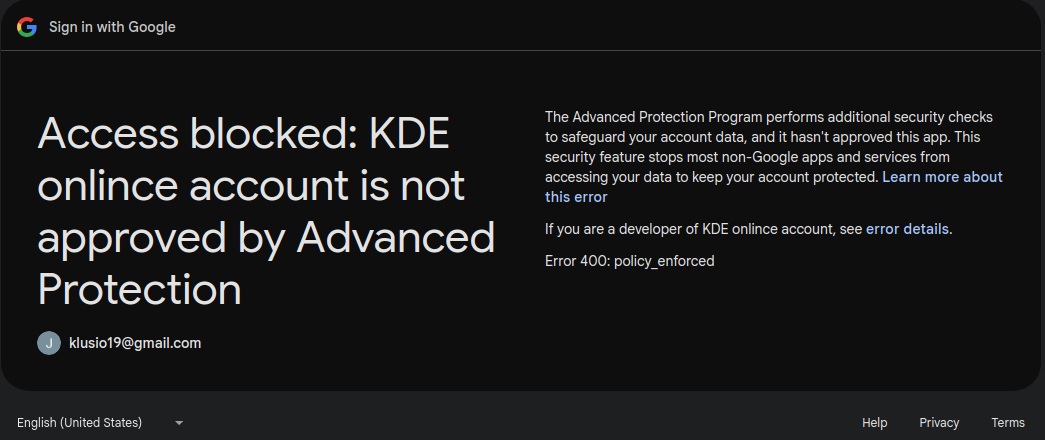
Oh my. Did everything as described, but of course, Google Moment™ must have happened. I have Google Advanced Protection enabled and because of that it is refusing to do almost anything. Before trying this workaround, I was able to log in with email + password + hardware key (yubikey). After doing this workaround, I enter mail + password + hardware key, and then I get this error:
”The Advanced Protection Program performs additional security checks to safeguard your account data, and it hasn’t approved this app. This security feature stops most non-Google apps and services from accessing your data to keep your account protected. Learn more about this error
If you are a developer of KDE onlince account, see error details.
Thanks you for the clear instructions! I can confirm that this still works as of 23/01/2026. =D
Just just a note that the “Contacts API” Overview notes that “This API is no longer being developed further. Please consider migrating to the People API instead“.