Yeah I know that and I do have it installed. I already figured many things about it, very cool.
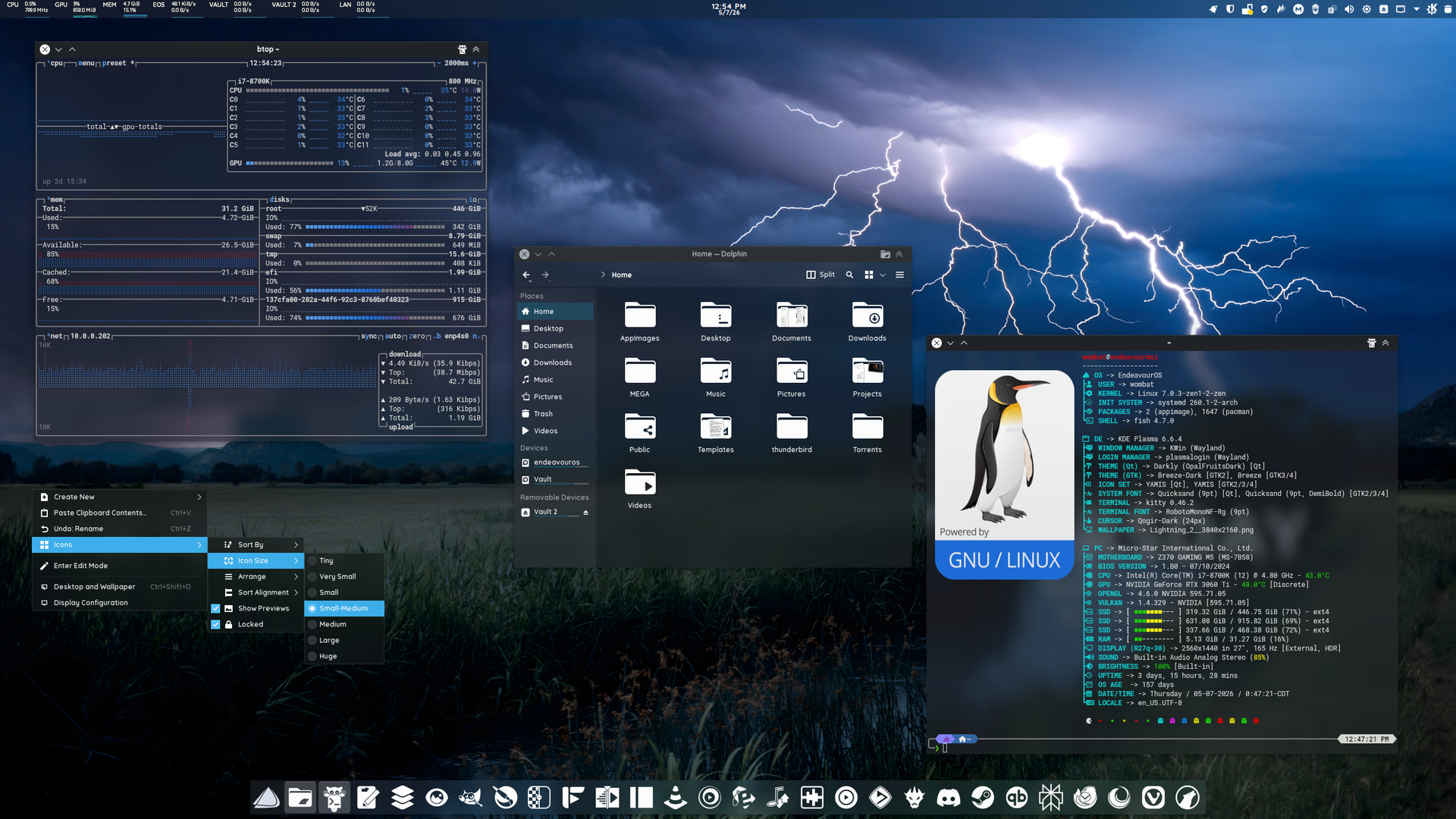
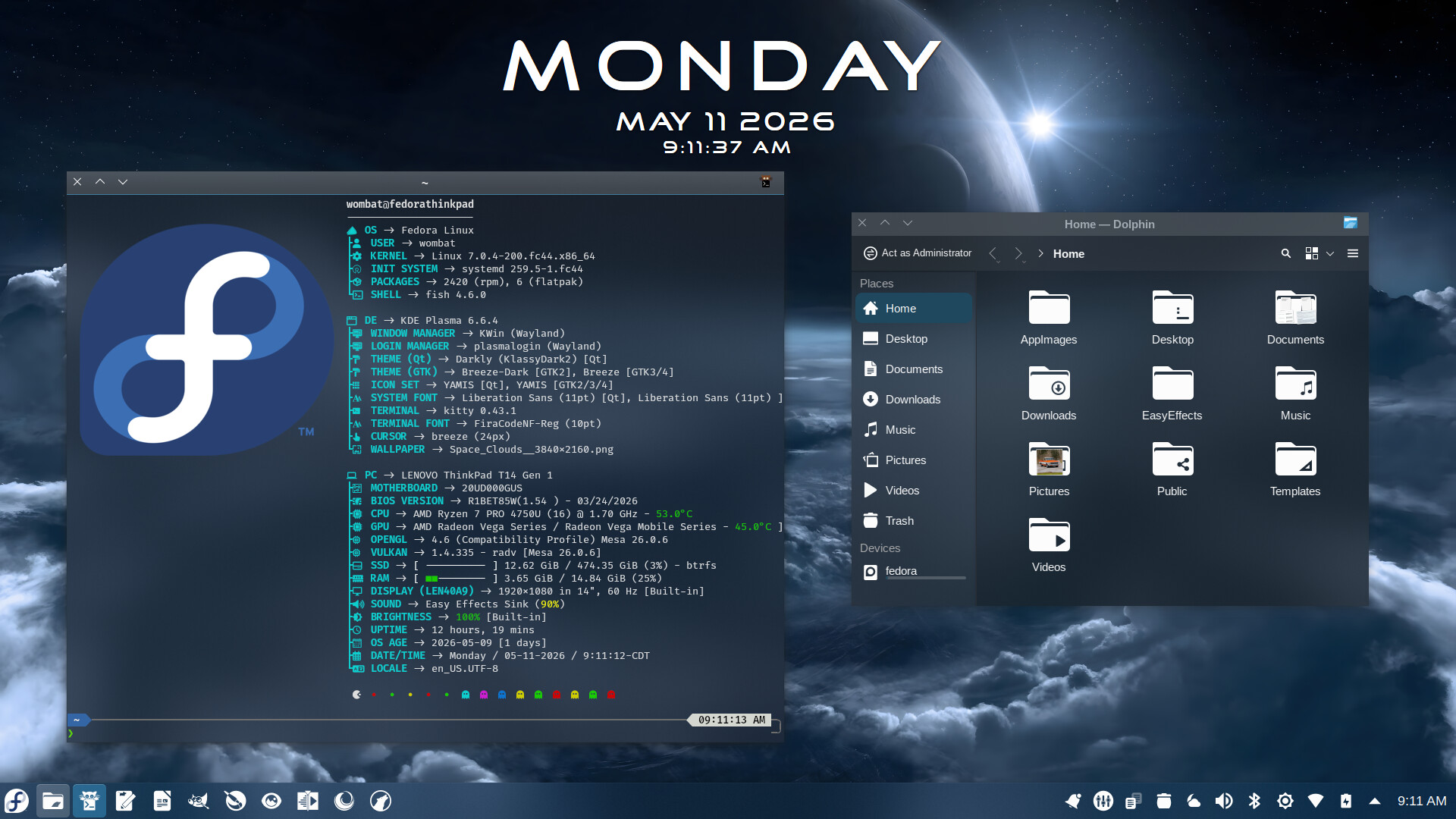
But can you please tell how did you manage to change the background color that appears below the icon when the app is started?
And how did you managed to remove that colored horizontal line above the app icon when the app is maximized(the default is accent color) and when it’s minimized(gray color)?
No matter what I do I can’t get rid of these or change them… so annoying!
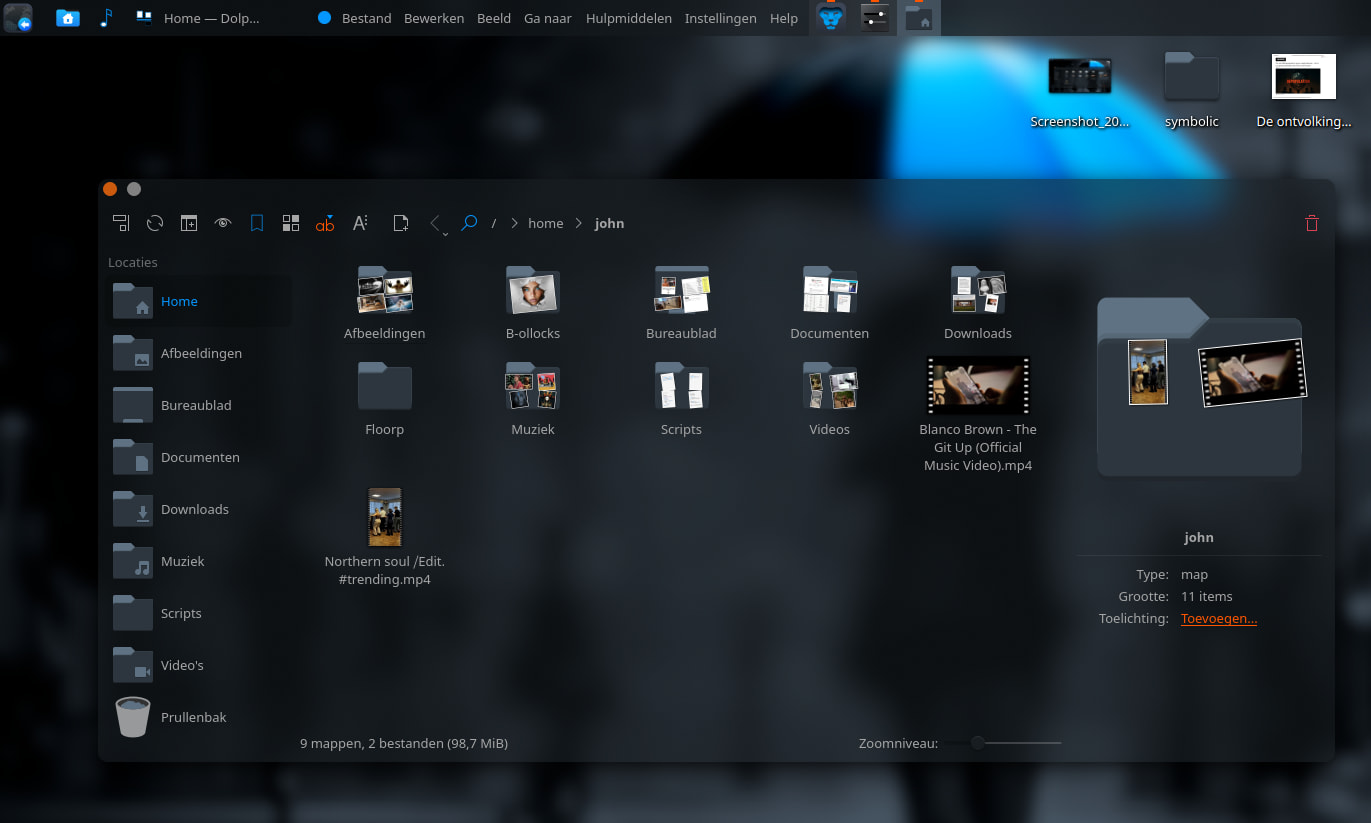
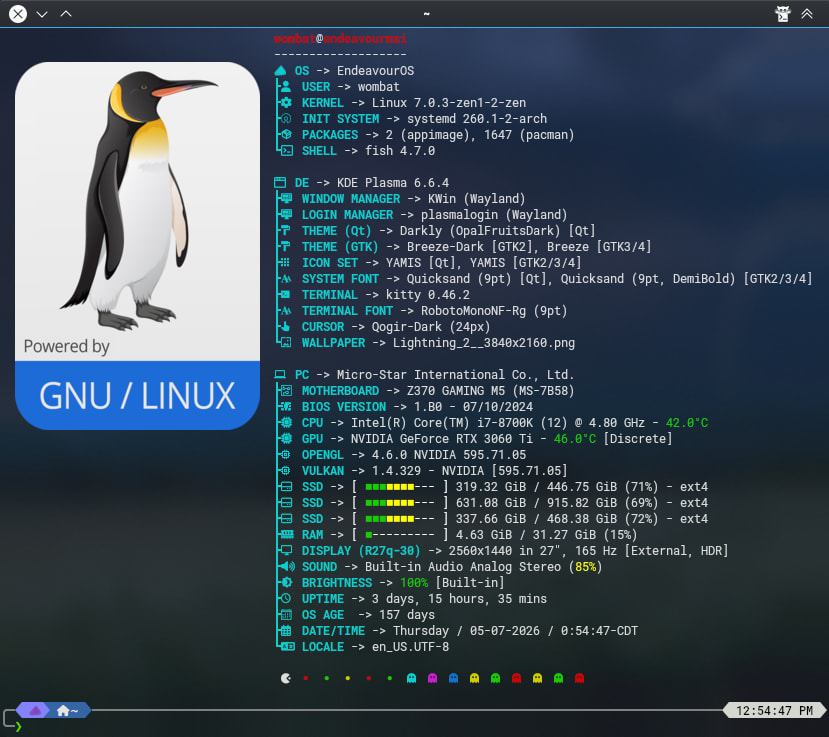
This what I mean(look for kitty and folder icons you have on the left and the far right icon too):
By the way, why can’t I find that theme in the “Get new gnome/gtk application styles…” or when I search for global themes? Can’t find darkly nor the klassydark2
I haven’t used “Get New” in a long time. There are very few available. Depending on your distro, they might be available in the repos. Example - Klassy and Darkly are available in Arch’s AUR.
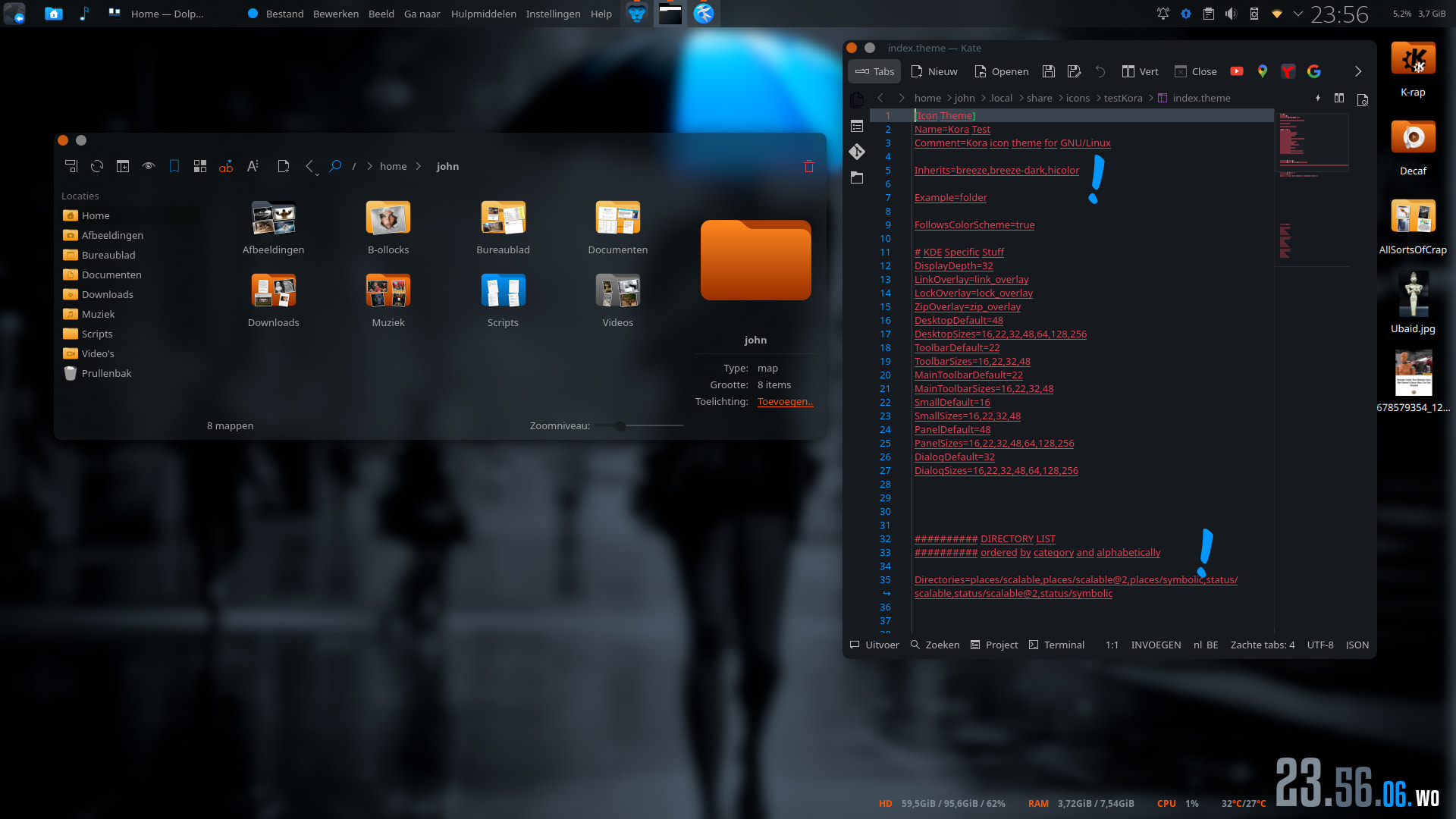
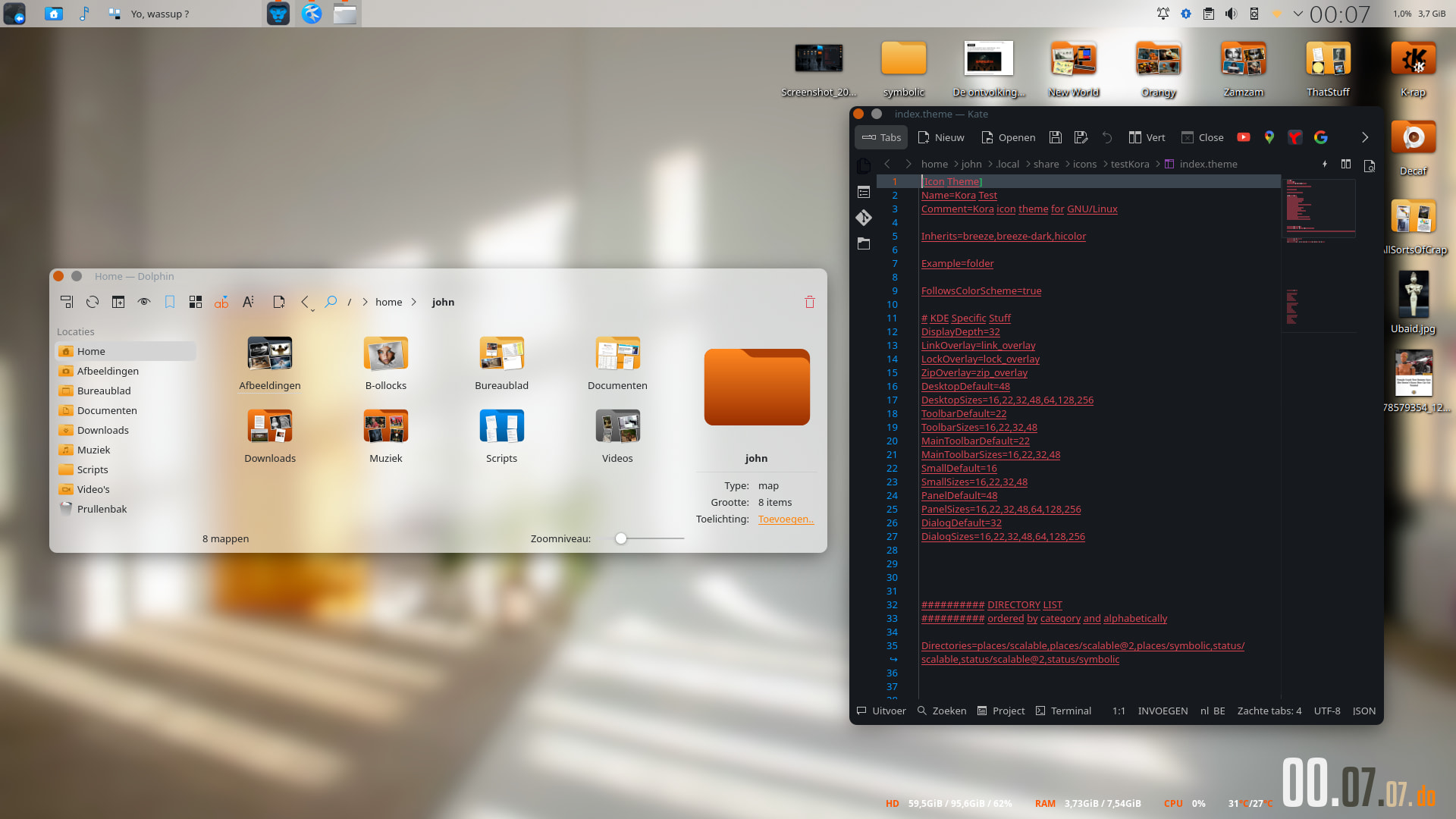
I found that it’s most common that the icon uses it’s scalable version when on the desktop and the symbolic version when it’s on the taskbar. I have achieved the scalable trash on taskbar by manually editing the icon pack myself. Isn’t an easy solution for all packs though.
Yes, in fact I didn’t have to modify my current icon pack to get the scalable in the file explorer, I will see how the trash looks on my taskbar because I haven’t tested it there yet with my windows setup. For dolphin it does also depend on what icon size you have set for your side bar.
I guess most of this can be done by editing the index of the icon pack. But, you better make a backup of the index cause it can be tricky. Well, not tricky but not all packs have the same, how to say, structure/directories. But yeah, not all reverse to symbolic.
Personally , I’m at a point I don’t really bother 'bout icon packs. I pick one I like and edit the index to just change ( well, mostly) directories and such. I also make sure it adapts to breeze, regardless if
On my primary account I don’t really change my pack much either, just edited the index and also added more icons to the pack. I have tried a few packs over time but ultimately switched back to my main.
The windows setup is just something I did on my experimental account.
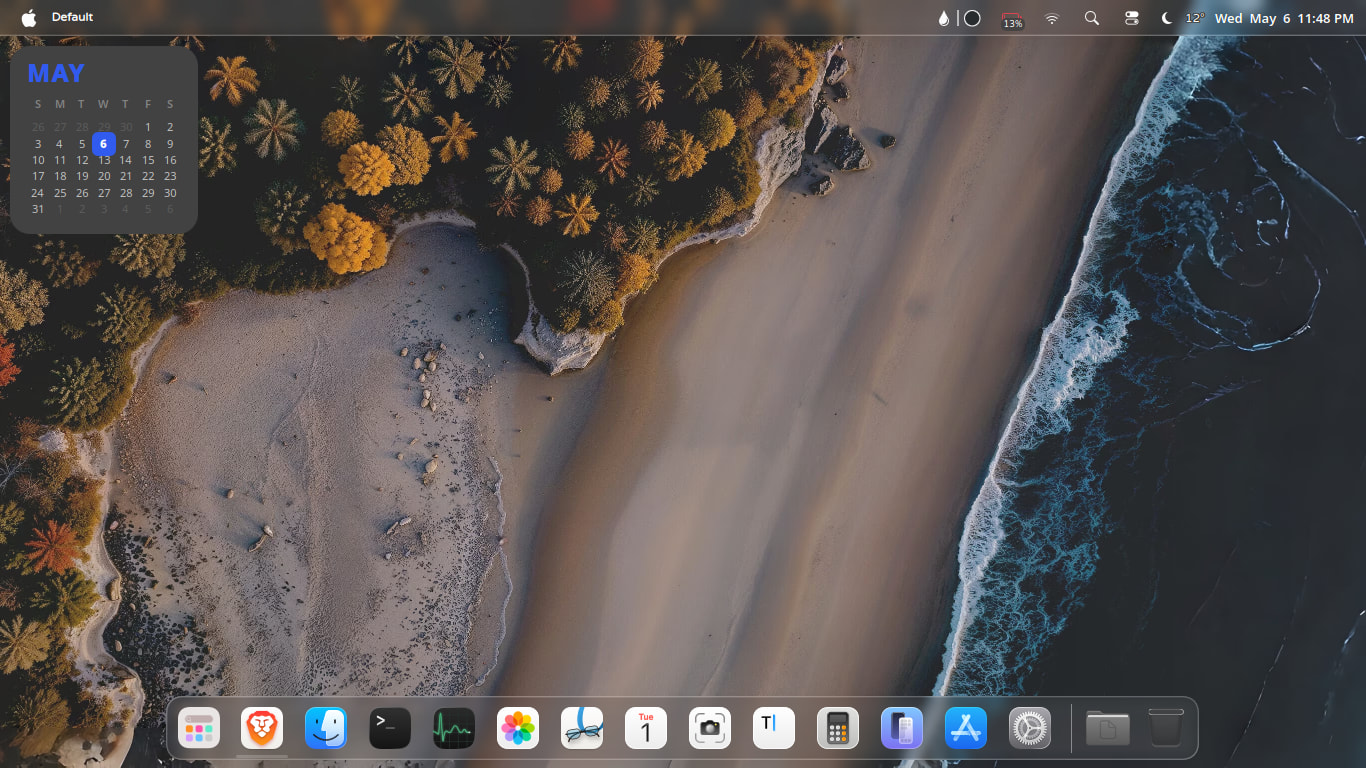
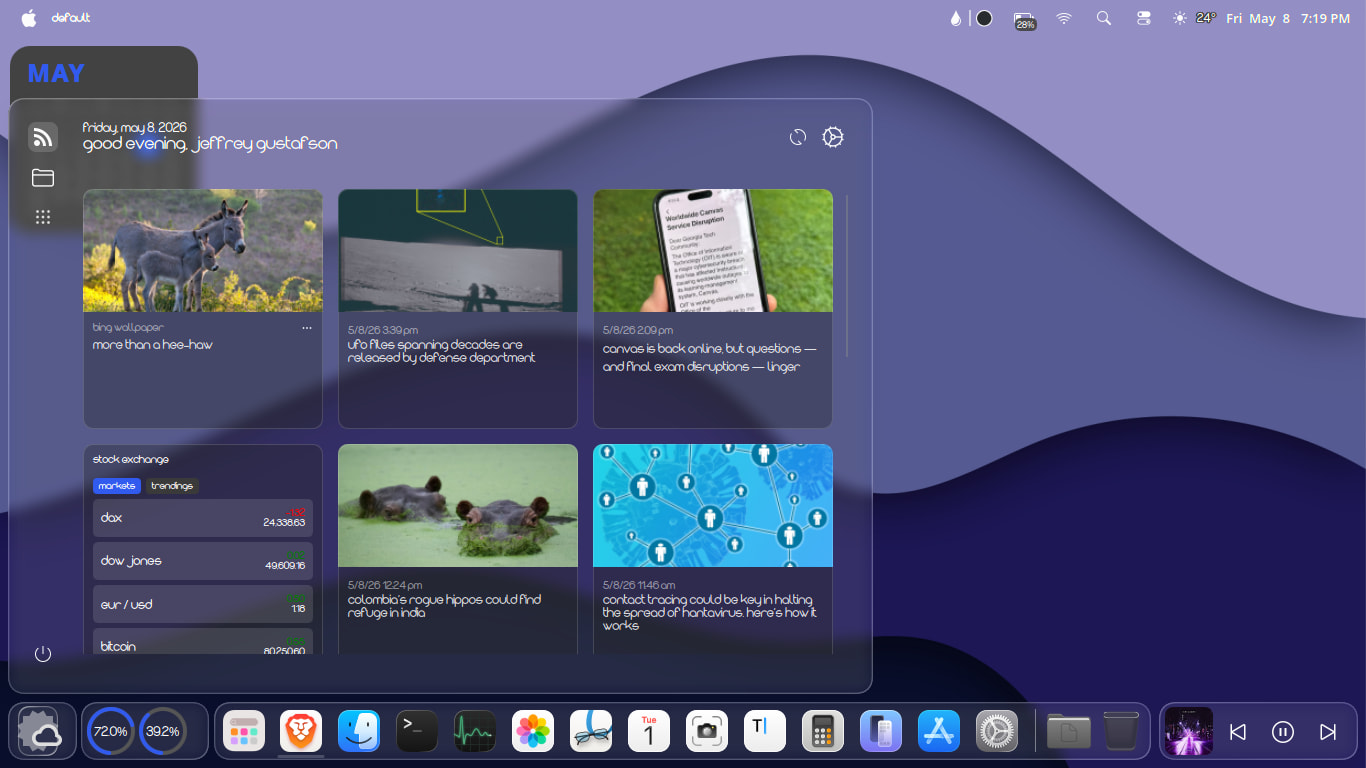
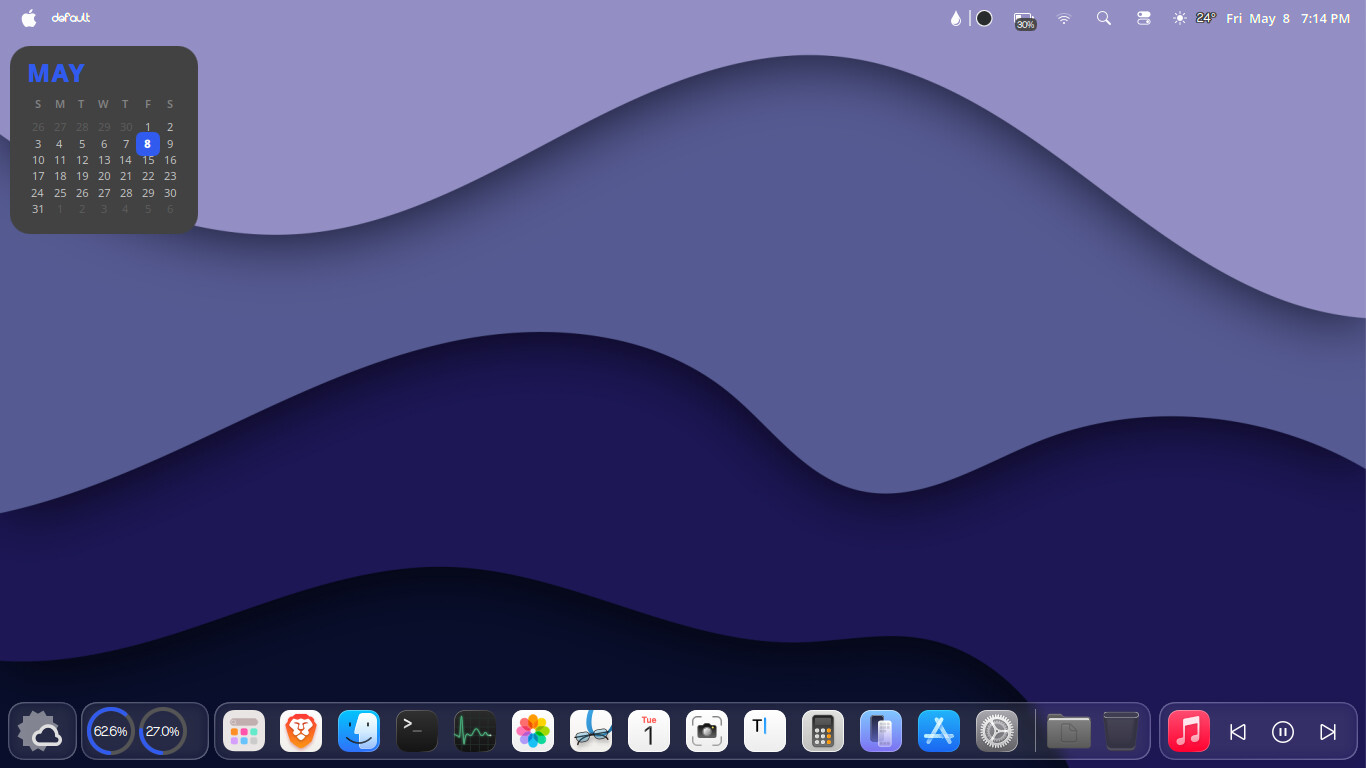
My main account is mac os styled and has been for a while now.
Slowly but surely figuring out how to cleanly colorize all elements of the environment as well as the entire internet.
All components listed in my dots repo.