Haha the issue is more nuanced really, isn’t it - about ‘intention’ and hypothetical issues and mental models… and ‘consistency’ is also confusing, because it might be a complete myth.
- ‘create new folder’ which creates a folder in the current spacial view. This is confused slightly by the list view, which isn’t quite a spacial view…
- Context counts, in icon view you can right click between icons, you can right click ON a specific element to act on that specific element, or you can use a taskbar button to act on the current spacial view, but then argue it should have acted on the currently selected element.
But we’re trying to think of an actual workflow, an actual reason behind these actions…
I have one… so I’ll tell you a story… imagine you just recovered a corrupt HDD, and have many media files… some .avi, .mp4, .flac and .opus files all mixed up in a /data folder.
Obviously we’re now in Dolphin in /data… and we’ll come across another ‘bug’ in Dolphin which doesn’t exist in Krusader…
Hit F3 to duplicate your pane, then you want folders… we want Audio and Video separated, and then we want 'AVI, MP4, FLAC and OPUS folders.
So in the new view, we can click ‘Create’ twice to create two folders (naming them each time - going from mouse to keyboard and back again, or using the keyboard shortcut)… or we can click ‘Create’ and type ‘Audio Video’ and create two named folders.
Note - using the keyboard shortcut is considered a niche, or ‘advanced user’ trick… whatever your opinion about it is… this is where more experienced users come a cropper discussing the issue. Such users, myself included, might be more inclined to want to type what they want.
So our view now, we are in /data. You can do this in the icon view b y carefully right clicking between icons and then going right to ‘+create new’ then right again to ‘Folder’ (which requires a fair level of skill) whereby you have a dialog - which is very nice. Type ‘Audio’ and choose your icon - we can choose another icon if we like. This is excellent.
Now you go back to the mouse, again try to accurately click on the background, not a folder, moving across ‘+create’ to hit ‘Folder’, then going back to selecting a folder icon and typing the name.
So having done this, I find the context clicking to be a little bit awkward - and we cannot type ‘Audio Video’ to create two folders, we will have a single folder named ‘Audio Video’ with a single icon and it’s not possible to create TWO folders with the single action…
Clicking an icon on the toolbar is a bit more efficient, but still singular in it’s action. This method is nice in that it prompts you to select an icon each time, though the ‘video’ folder required me to ‘Choose Other Icon…’ and then filter to get the Video icon.
Ok, so choosing folder images is a little niche - nice, but perhaps we’re already bored with this simple task. Why can’t we simply double click the ‘Create new folder’ icon to do the simple action ‘mkdir -pv Audio Video’… we must hit Enter each time to confirm, but that’s not a big deal is it? An extra action on the keyboard is more trivial for me personally.
This is where I get tripped up, in my spacial or List view now…
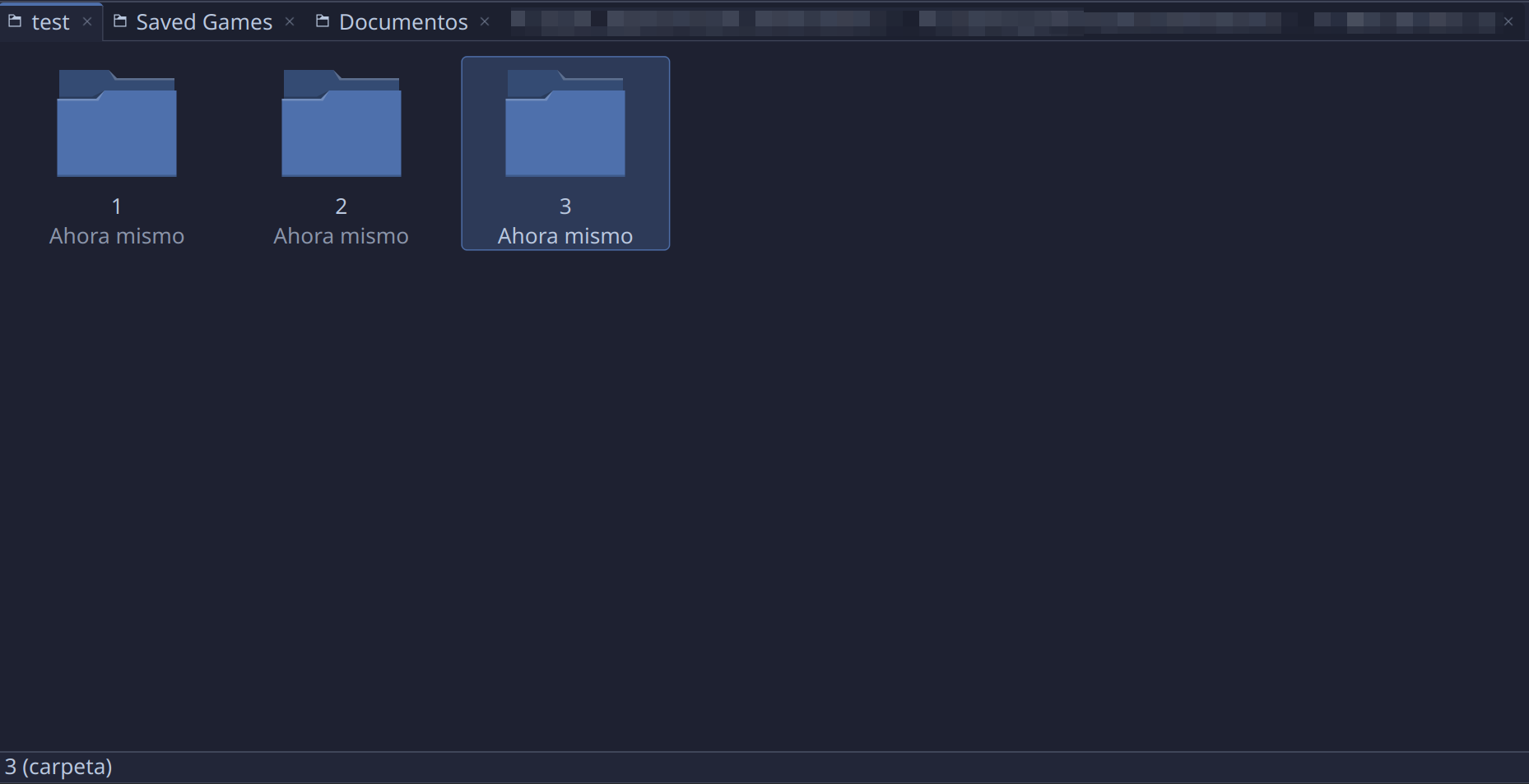
Create new folder ‘Audio’ (Enter to confirm) then Create new folder ‘Video’… we missed the issue now. I see only one Audio folder, but I do see a subtle sign that it now has a subfolder!
Ok, rewind… ‘Create new folder ‘Audio’’ followed by ‘Escape’ to deselect, then 'Create new folder ‘Video’.
We have completely skipped over the traditional method (not terminal) of doing this, we would press AltF for the File menu, →to go to the submenu to select ‘Folder’ with Enter.
This is very old UX, this is also very comfortable for older Windows users… and the menu items are all clearly labelled too and require no difficult mousing skills.
Then we have my personal choice, which is not for noobs and arguably not as accessible…
In our /data folder we can do F4 and type mkdir -pv Audio/FLAC Audio/mp3 Video/MKV Video/AVI
This works, because the terminal knows that a space separates items, and a slash creates subfolders…
The GUI also understands the slash will create sub-folders, but it doesn’t believe that spaces should create parallel folders.
So now the argument is a bit messed up, and context is indeed proving to be more important than consistency.
So now we go to our Android phone and find that we should actually do this another way… starting in /data again…
- Create folder Video’ and ENTER that folder.
- Create folder ‘MP4’, Create folder ‘AVI’.
- Back to parent folder.
- Create ‘Audio’ and ENTER
- Create ‘Flac’, Create ‘Opus’
- Back to parent folder.
No confusion, no trip-ups.
So for POWER users, you could possibly have a ‘New Multiple Folders’ function - in the right click, or shortcut, letting you type names separated by comma, or semicolon… or perhaps even a double-space would do the job.
 and it’s true that if I want to do something inside a directory in the icon view, I first enter the directory.